
今天来学学更多的flutter的组件
弹性布局-Flex
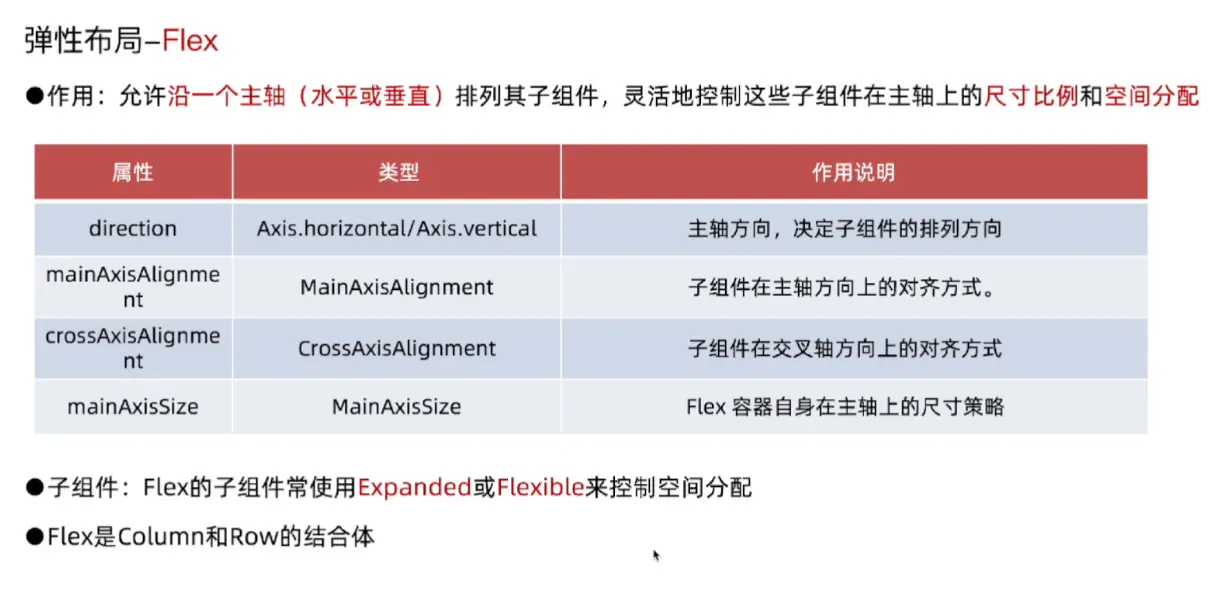
Expanded
import 'package:flutter/material.dart';
void main() {
runApp(MainPage());
}
class MainPage extends StatelessWidget {
const MainPage({super.key});
Widget build(BuildContext context) {
return MaterialApp(
title: "终末地AI群聊",
home: Scaffold(
appBar: AppBar(centerTitle: true, title: Text("终末地AI群聊")),
body: Container(
width: double.infinity, //宽度占满父组件
height: double.infinity, //高度占满父组件
decoration: BoxDecoration(color: Colors.tealAccent),
child: Flex(
direction: Axis.horizontal, //主轴水平
//direction: Axis.vertical, //主轴垂直
children: [
//Expaned组件会占满剩余空间
Expanded(
flex: 1, //flex属性表示占剩余空间的比例,如果有多个Expanded组件,flex值越大占的空间越多
child: Container(
color: Colors.redAccent,
height: 50,
width: 50,
),
),
Expanded(
flex: 2,
child: Container(
color: Colors.blueAccent,
height: 50,
width: 50,
),
),
],
),
),
bottomNavigationBar: Container(
height: 80,
child: Center(child: Text("终末地AI群聊")),
),
),
);
}
}
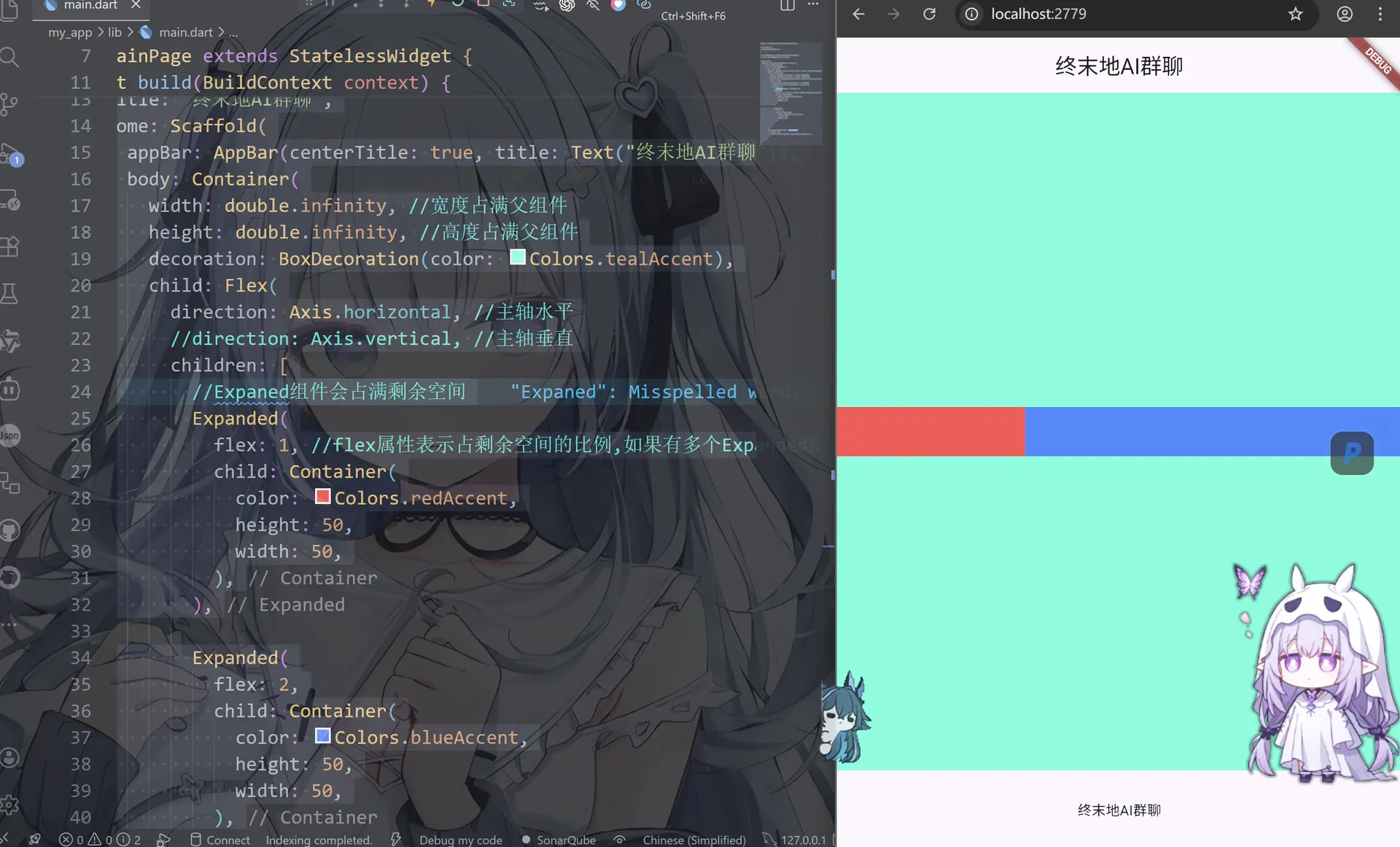
Flexible
import 'package:flutter/material.dart';
void main() {
runApp(MainPage());
}
class MainPage extends StatelessWidget {
const MainPage({super.key});
Widget build(BuildContext context) {
return MaterialApp(
title: "终末地AI群聊",
home: Scaffold(
appBar: AppBar(centerTitle: true, title: Text("终末地AI群聊")),
body: Container(
width: double.infinity, //宽度占满父组件
height: double.infinity, //高度占满父组件
decoration: BoxDecoration(color: Colors.tealAccent),
child: Flex(
direction: Axis.horizontal, //主轴水平
//direction: Axis.vertical, //主轴垂直
children: [
//Flexible组件不同于Expanded组件,Flexible组件可以设置flex属性来控制占用剩余空间的比例,而Expanded组件默认占用所有剩余空间
Flexible(
flex: 50, //flex属性表示占剩余空间的比例,如果有多个Flexible组件,flex值越大占的空间越多
child: Container(
color: Colors.redAccent,
height: 100,
width: 100,
),
),
Flexible(
flex: 2,
child: Container(
color: Colors.blueAccent,
height: 100,
width: 100,
),
),
],
),
),
bottomNavigationBar: Container(
height: 80,
child: Center(child: Text("终末地AI群聊")),
),
),
);
}
}
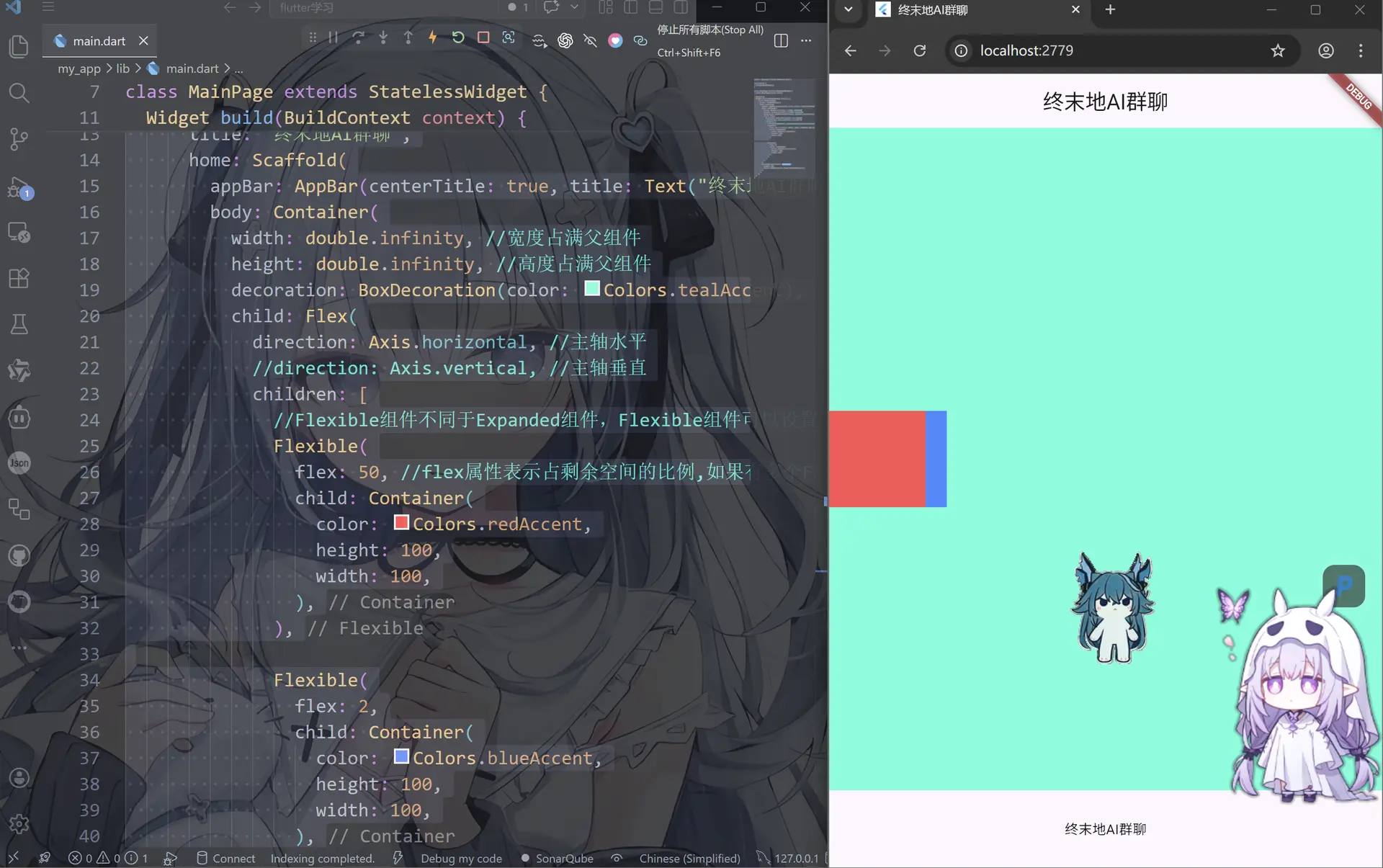
Flex布局受其父组件传递的约束影响。确保父组件提供了适当的布局约束
Expanded与Flexible的区别:
——– Expanded强制子组件填满所有剩余空间,
——– Flexible根据自身大小调整,不强制占满空间
我们来练习一下
import 'package:flutter/material.dart';
void main() {
runApp(MainPage());
}
class MainPage extends StatelessWidget {
const MainPage({super.key});
Widget build(BuildContext context) {
return MaterialApp(
title: "终末地AI群聊",
home: Scaffold(
appBar: AppBar(centerTitle: true, title: Text("终末地AI群聊")),
body: Container(
width: double.infinity, //宽度占满父组件
height: double.infinity, //高度占满父组件
decoration: BoxDecoration(color: Colors.tealAccent),
child: Flex(
direction: Axis.vertical, //主轴垂直
children: [
Container(color: Colors.redAccent, height: 100),
Expanded(
child: Container(
color: Colors.greenAccent,
width: double.infinity,
height: 100,
),
),
Container(color: Colors.blueAccent, height: 100),
],
),
),
bottomNavigationBar: Container(
height: 80,
child: Center(child: Text("终末地AI群聊")),
),
),
);
}
}
流式布局-Wrap
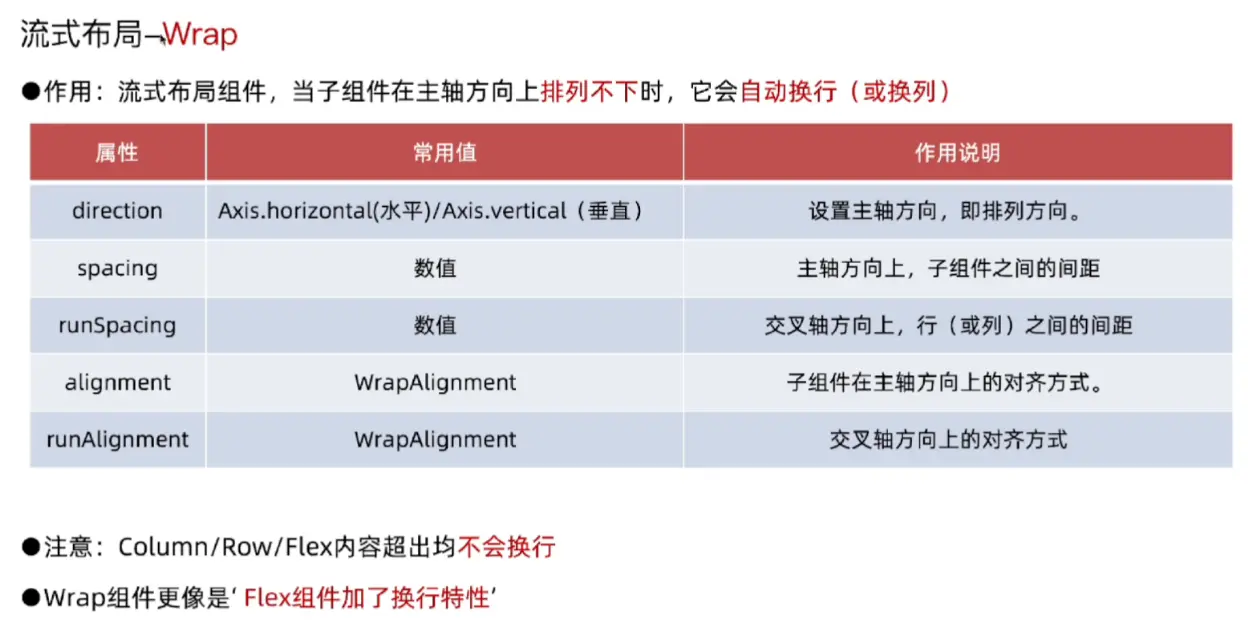
当子组件内容是根据数据动态生成时,使用wrap可以确保布局始终适配
import 'package:flutter/material.dart';
void main() {
runApp(MainPage());
}
class MainPage extends StatelessWidget {
const MainPage({super.key});
//使用Widgt类型的返回值,生成一个包含10个Container组件的列表
List<Widget> getList() {
//List.generate(count, generator)方法可以生成一个包含count个元素的列表,generator是一个函数,用于生成每个元素的值
//这里用(){}匿名函数来生成每个元素的值,index是当前元素的索引,从0开始
return List.generate(13, (index) {
return Container(width: 100, height: 100, color: Colors.redAccent);
});
}
Widget build(BuildContext context) {
return MaterialApp(
title: "终末地AI群聊",
home: Scaffold(
appBar: AppBar(centerTitle: true, title: Text("终末地AI群聊")),
body: Container(
width: double.infinity, //宽度占满父组件
height: double.infinity, //高度占满父组件
decoration: BoxDecoration(color: Colors.tealAccent),
child: Wrap(
spacing: 10, //主轴上间距
runSpacing: 10, //交叉轴上间距
alignment: WrapAlignment.spaceAround, //主轴对齐方式为均分
direction: Axis.horizontal, //主轴方向为水平方向
children: getList(), //生成10个子组件
),
),
bottomNavigationBar: Container(
height: 80,
child: Center(child: Text("终末地AI群聊")),
),
),
);
}
}
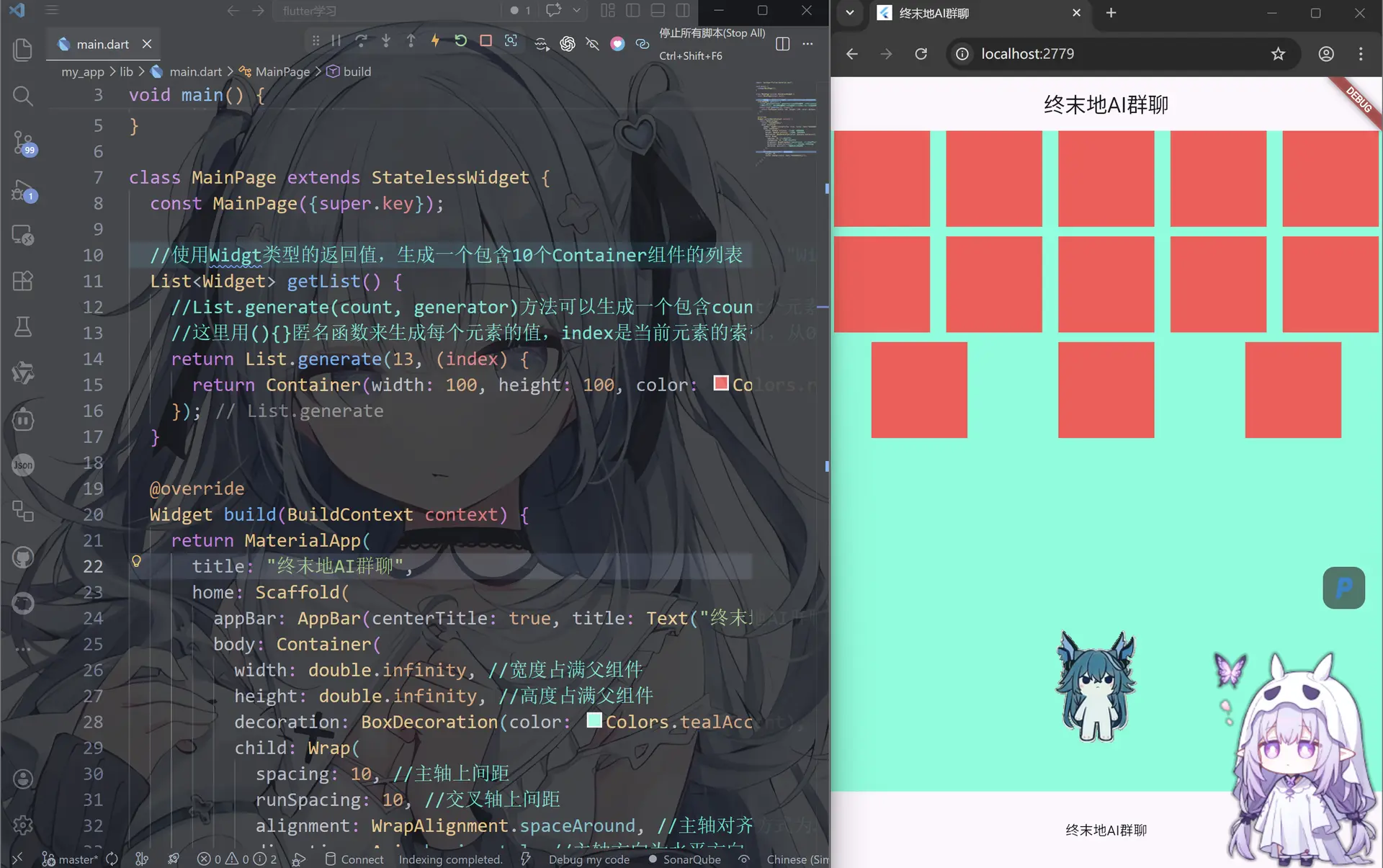
List.generate是一个构造器,用于快速创建长度固定且每个元素可以通过索引号确定的列表语法:
List.generate(int count, E generator(int index), {bool growable: false})
层叠布局-Stack/Positioned
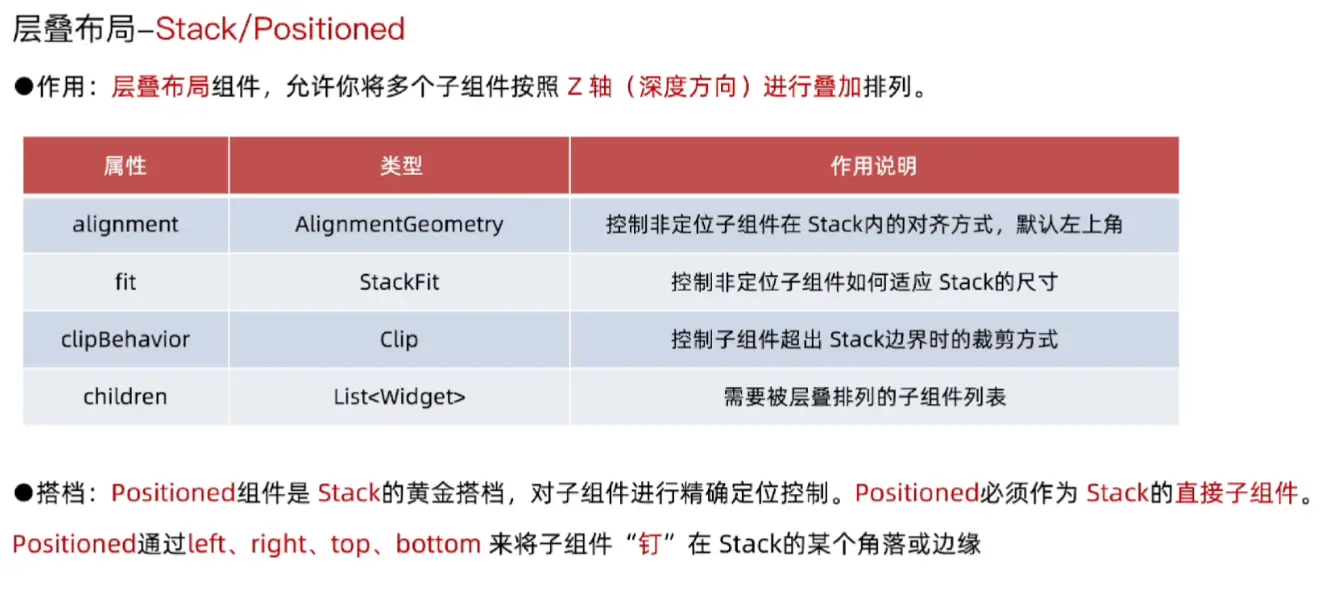
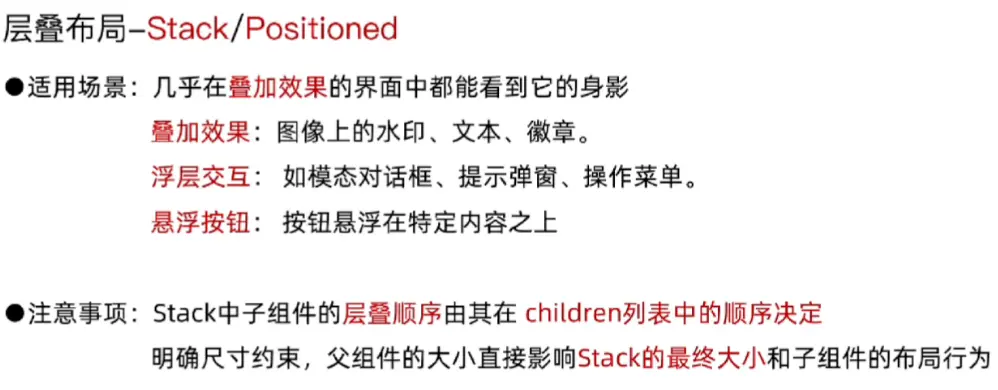
可以看出这个是层叠式的,一层叠一层
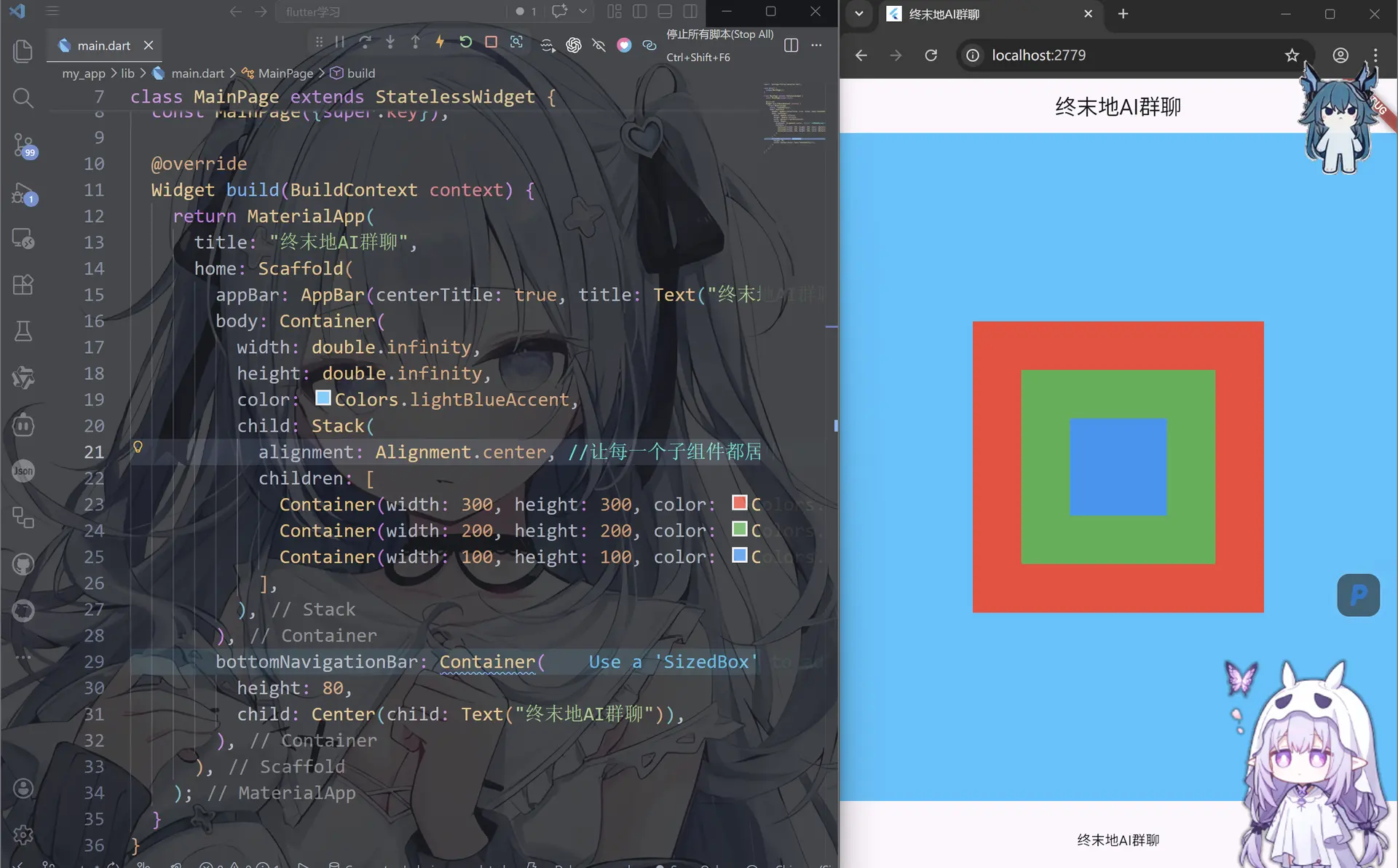
import 'package:flutter/material.dart';
void main() {
runApp(MainPage());
}
class MainPage extends StatelessWidget {
const MainPage({super.key});
Widget build(BuildContext context) {
return MaterialApp(
title: "终末地AI群聊",
home: Scaffold(
appBar: AppBar(centerTitle: true, title: Text("终末地AI群聊")),
body: Container(
width: double.infinity,
height: double.infinity,
color: Colors.lightBlueAccent,
child: Stack(
alignment: Alignment.center, //让每一个子组件都居中
children: [
Container(width: 300, height: 300, color: Colors.red),
Container(width: 200, height: 200, color: Colors.green),
Container(width: 100, height: 100, color: Colors.blue),
],
),
),
bottomNavigationBar: Container(
height: 80,
child: Center(child: Text("终末地AI群聊")),
),
),
);
}
}
Positioned
import 'package:flutter/material.dart';
void main() {
runApp(MainPage());
}
class MainPage extends StatelessWidget {
const MainPage({super.key});
Widget build(BuildContext context) {
return MaterialApp(
title: "终末地AI群聊",
home: Scaffold(
appBar: AppBar(centerTitle: true, title: Text("终末地AI群聊")),
body: Container(
width: double.infinity,
height: double.infinity,
color: Colors.lightBlueAccent,
child: Stack(
alignment: Alignment.center,
children: [
Container(width: 150, height: 150, color: Colors.red),
Container(width: 100, height: 100, color: Colors.green),
Container(width: 50, height: 50, color: Colors.blue),
Positioned(
//Positionzd组件用于确定子组件的位置
right: 50,
bottom: 50,
child: Container(width: 50, height: 50, color: Colors.yellow),
),
Positioned(
left: 50,
bottom: 50,
child: Container(width: 50, height: 50, color: Colors.yellow),
),
Positioned(
right: 50,
top: 50,
child: Container(width: 50, height: 50, color: Colors.yellow),
),
Positioned(
left: 50,
top: 50,
child: Container(width: 50, height: 50, color: Colors.yellow),
),
],
),
),
bottomNavigationBar: Container(
height: 80,
child: Center(child: Text("终末地AI群聊")),
),
),
);
}
}
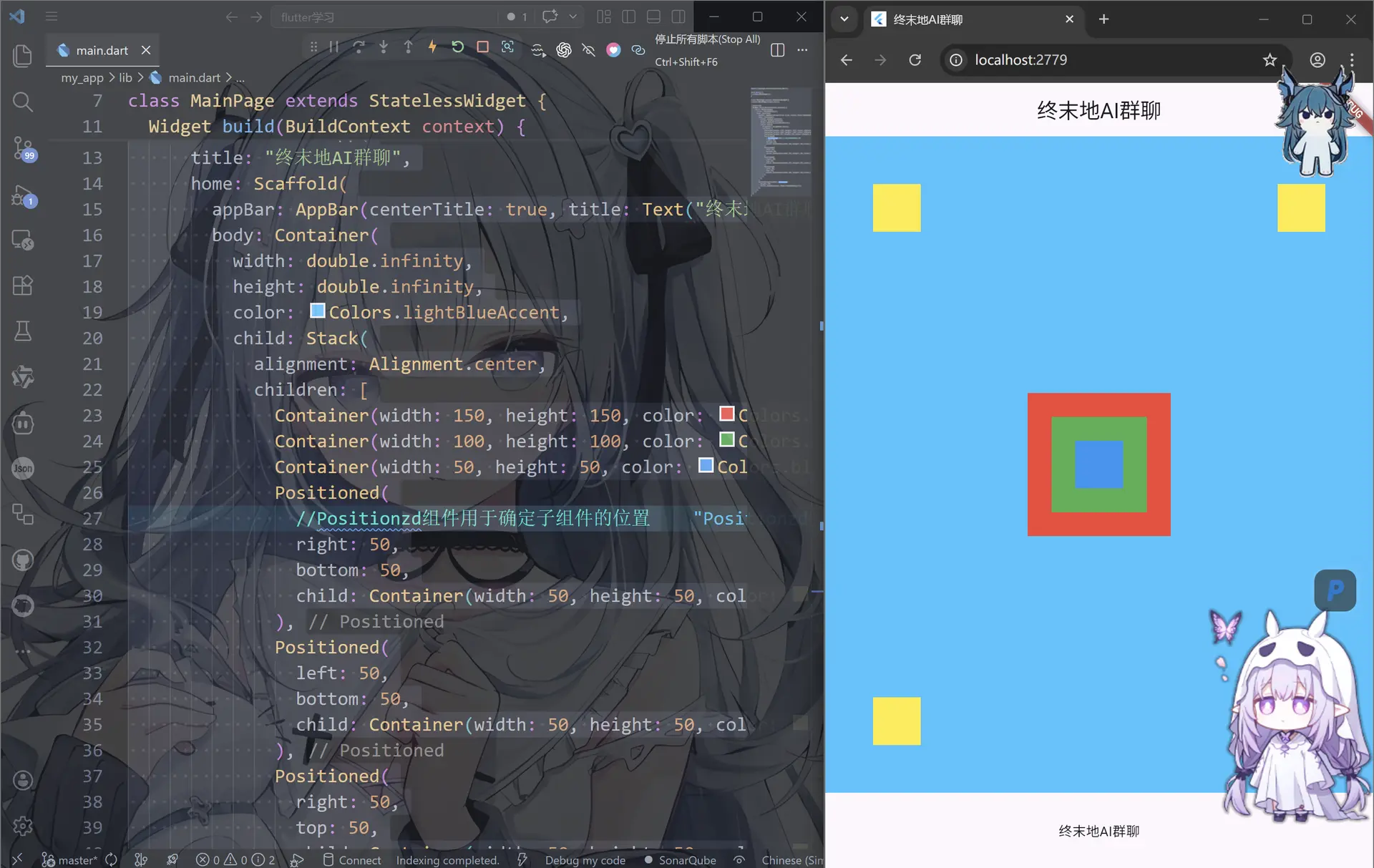
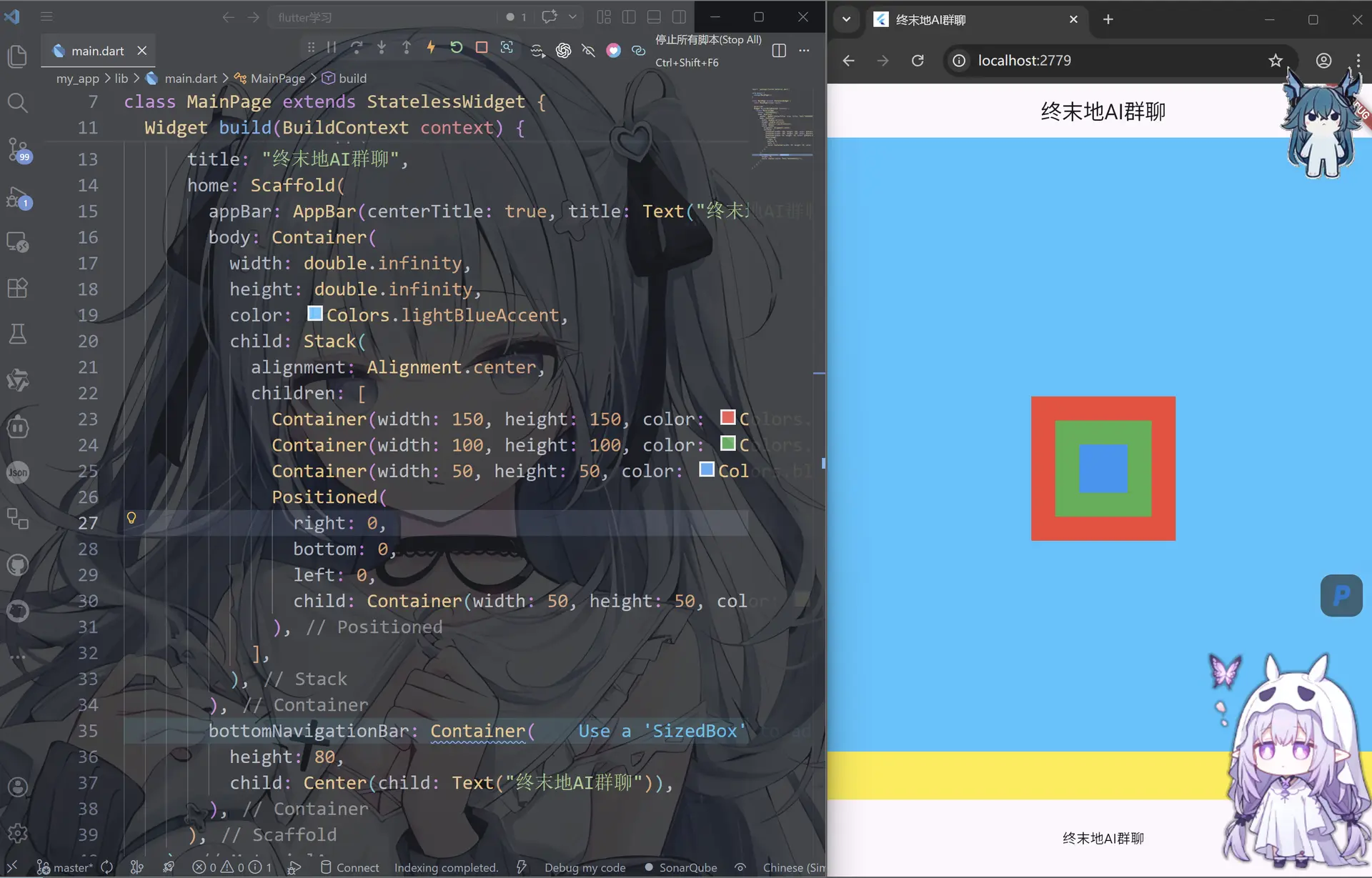
还有一个很奇葩的玩法就是,我们在之前学习的padding这里可以用positioned来代替效果
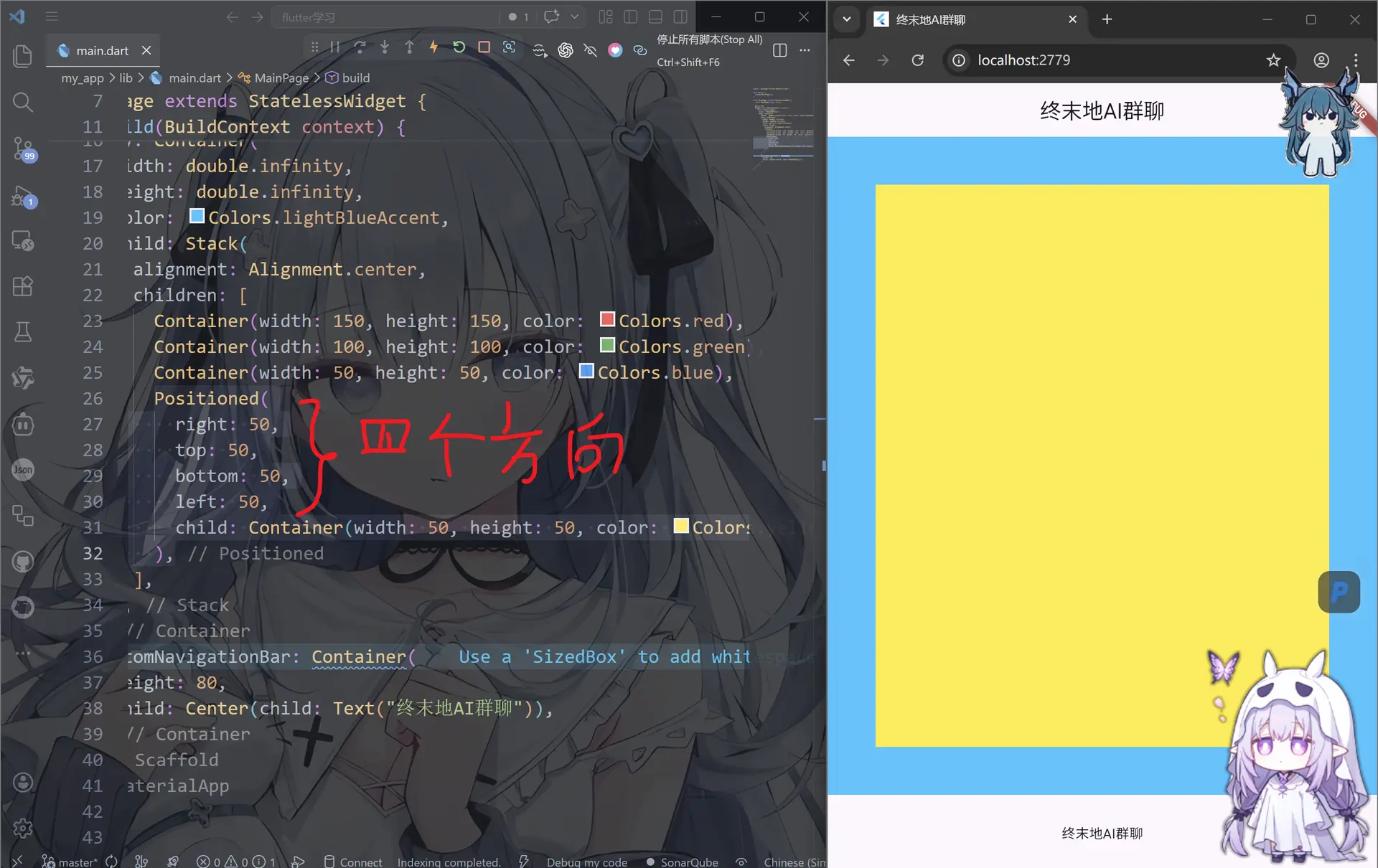
首先先了解positioned的一个特性,如果我们同时输入上下左右四个方向
Positioned(
    right: 50,
    top: 50,
    bottom: 50,
    left: 50,
    child: Container(width: 50, height: 50, color: Colors.yellow),
),
此时代码不会报错,而是子组件往四个方向延伸来覆盖容器
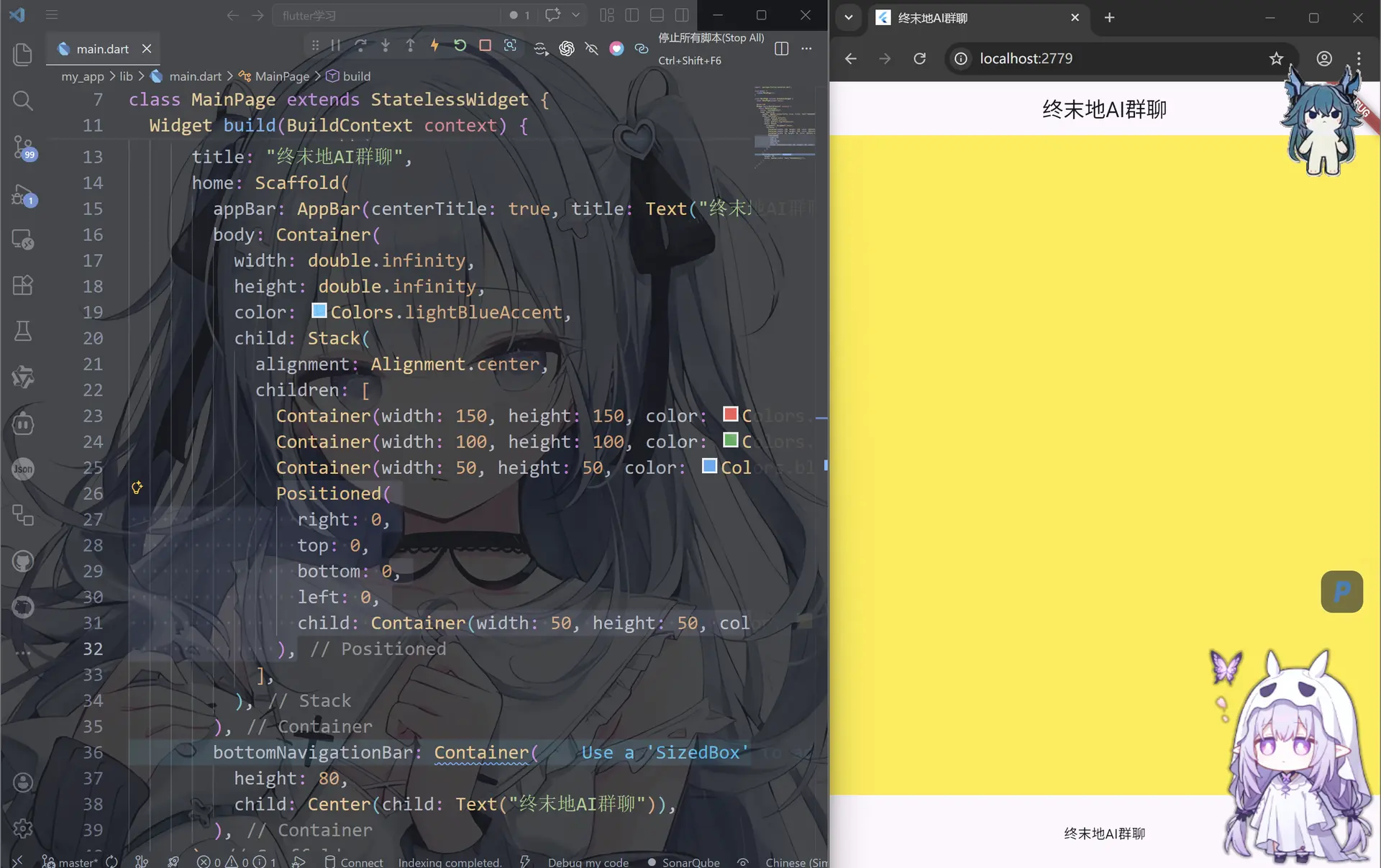
而且取值为0的时候甚至全部覆盖body
Positioned(
	right: 0,
	top: 0,
	bottom: 0,
	left: 0,
	child: Container(width: 50, height: 50, color: Colors.yellow),
),
同理,我们也可以制造单方向延伸的条
Positioned(
	right: 0,
	bottom: 0,
	left: 0,
	child: Container(width: 50, height: 50, color: Colors.yellow),
),
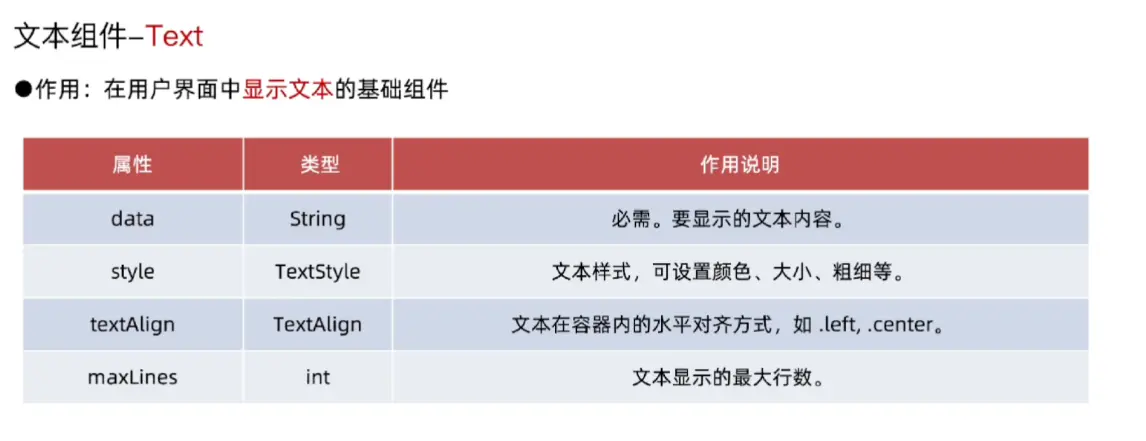
文本组件-Text
import 'package:flutter/material.dart';
void main() {
runApp(MainPage());
}
class MainPage extends StatelessWidget {
const MainPage({super.key});
Widget build(BuildContext context) {
return MaterialApp(
title: "终末地AI群聊",
home: Scaffold(
appBar: AppBar(centerTitle: true, title: Text("终末地AI群聊")),
body: Container(
width: double.infinity,
height: double.infinity,
color: Colors.lightBlueAccent,
alignment: Alignment.center,
child: Text(
"终末地AI群聊",
style: TextStyle(
fontSize: 24,
fontWeight: FontWeight.bold, //fontWeight这里是加粗
color: Colors.white, //color是字体颜色
fontStyle: FontStyle.italic, //fontStyle这里是斜体
shadows: [
Shadow(
color: Colors.black45,
offset: Offset(2, 2),
blurRadius: 4,
),
], //shadows是阴影
decoration: TextDecoration.underline, //decoration是下饰线
decorationColor: Colors.white70, //decorationColor是下饰线的颜色
),
),
),
bottomNavigationBar: Container(
height: 80,
child: Center(child: Text("终末地AI群聊")),
),
),
);
}
}
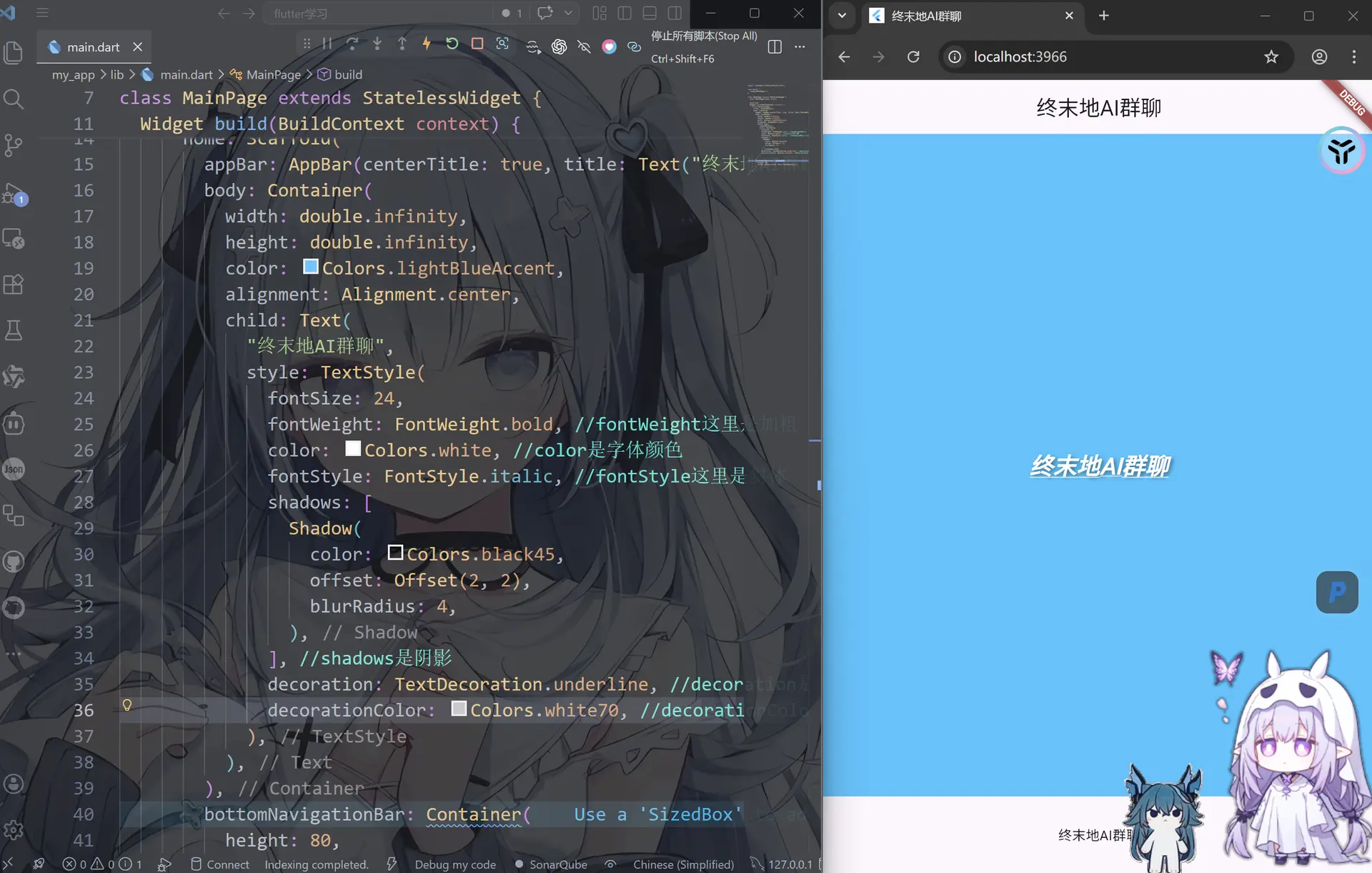
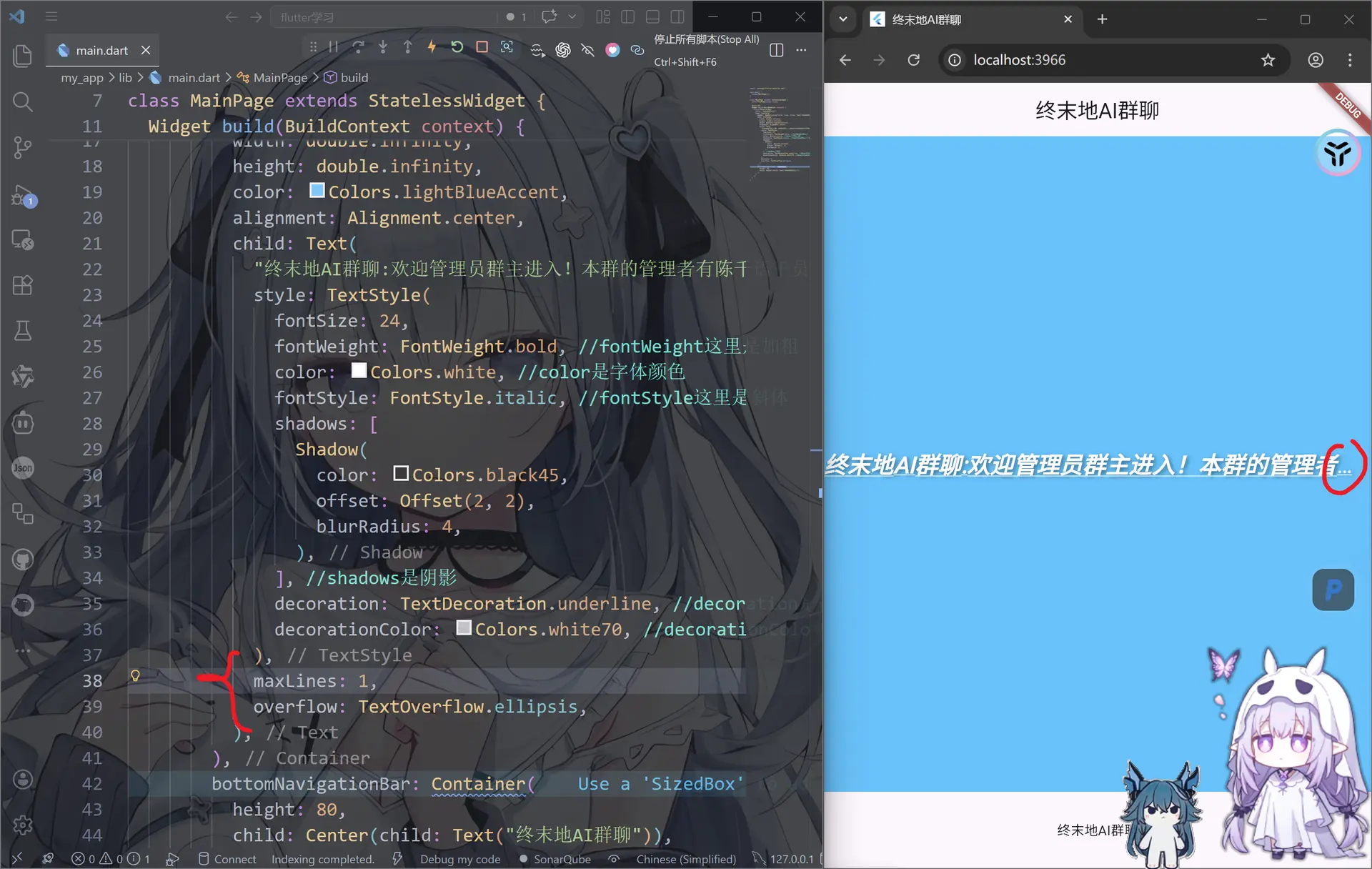
我们普通的文字排列是默认的换行
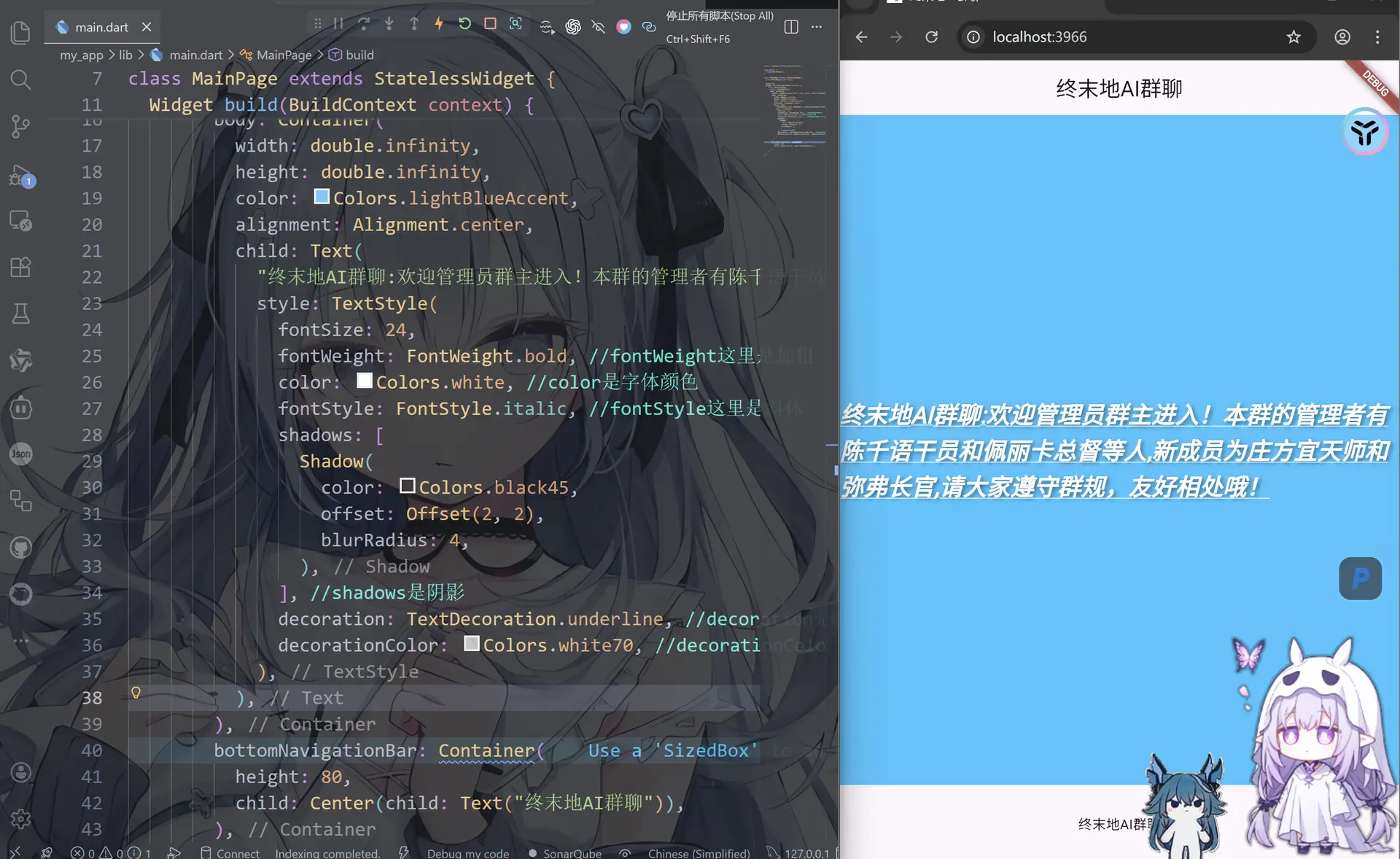
但是我们也可以指定显示的行号
import 'package:flutter/material.dart';
void main() {
runApp(MainPage());
}
class MainPage extends StatelessWidget {
const MainPage({super.key});
Widget build(BuildContext context) {
return MaterialApp(
title: "终末地AI群聊",
home: Scaffold(
appBar: AppBar(centerTitle: true, title: Text("终末地AI群聊")),
body: Container(
width: double.infinity,
height: double.infinity,
color: Colors.lightBlueAccent,
alignment: Alignment.center,
child: Text(
"终末地AI群聊:欢迎管理员群主进入!本群的管理者有陈千语干员和佩丽卡总督等人,新成员为庄方宜天师和弥弗长官,请大家遵守群规,友好相处哦!",
style: TextStyle(
fontSize: 24,
fontWeight: FontWeight.bold, //fontWeight这里是加粗
color: Colors.white, //color是字体颜色
fontStyle: FontStyle.italic, //fontStyle这里是斜体
shadows: [
Shadow(
color: Colors.black45,
offset: Offset(2, 2),
blurRadius: 4,
),
], //shadows是阴影
decoration: TextDecoration.underline, //decoration是下饰线
decorationColor: Colors.white70, //decorationColor是下饰线的颜色
),
maxLines: 1, //maxLines是文本的最大行数,这里是1行
overflow: TextOverflow.ellipsis, //overflow是文本溢出时的处理方式,这里是用省略号表示溢出部分
),
),
bottomNavigationBar: Container(
height: 80,
child: Center(child: Text("终末地AI群聊")),
),
),
);
}
}
TextSpan
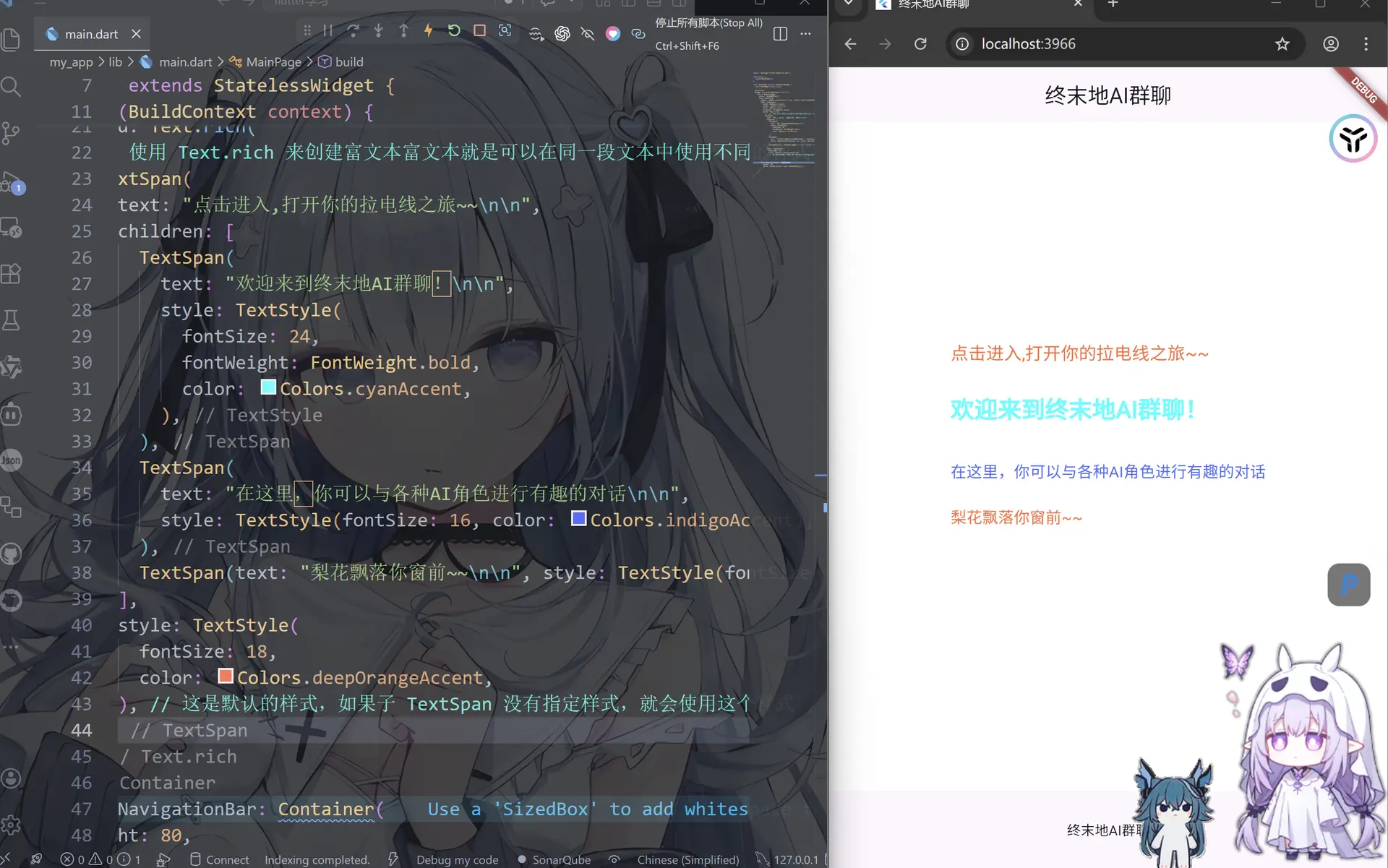
如果需要在同一段本中显示不同样式,可用Text.rich构造函数配合TextSpan来实现

import 'package:flutter/material.dart';
void main() {
runApp(MainPage());
}
class MainPage extends StatelessWidget {
const MainPage({super.key});
Widget build(BuildContext context) {
return MaterialApp(
title: "终末地AI群聊",
home: Scaffold(
appBar: AppBar(centerTitle: true, title: Text("终末地AI群聊")),
body: Container(
width: double.infinity,
height: double.infinity,
color: Colors.white,
alignment: Alignment.center,
child: Text.rich(
// 使用 Text.rich 来创建富文本富文本就是可以在同一段文本中使用不同的样式
TextSpan(
text: "点击进入,打开你的拉电线之旅~~\n\n",
children: [
TextSpan(
text: "欢迎来到终末地AI群聊!\n\n",
style: TextStyle(
fontSize: 24,
fontWeight: FontWeight.bold,
color: Colors.cyanAccent,
),
),
TextSpan(
text: "在这里,你可以与各种AI角色进行有趣的对话\n\n",
style: TextStyle(fontSize: 16, color: Colors.indigoAccent),
),
TextSpan(text: "梨花飘落你窗前~~\n\n", style: TextStyle(fontSize: 16)),
],
style: TextStyle(
fontSize: 18,
color: Colors.deepOrangeAccent,
), // 这是默认的样式,如果子 TextSpan 没有指定样式,就会使用这个样式
),
),
),
bottomNavigationBar: Container(
height: 80,
child: Center(child: Text("终末地AI群聊")),
),
),
);
}
}
图片组件-image
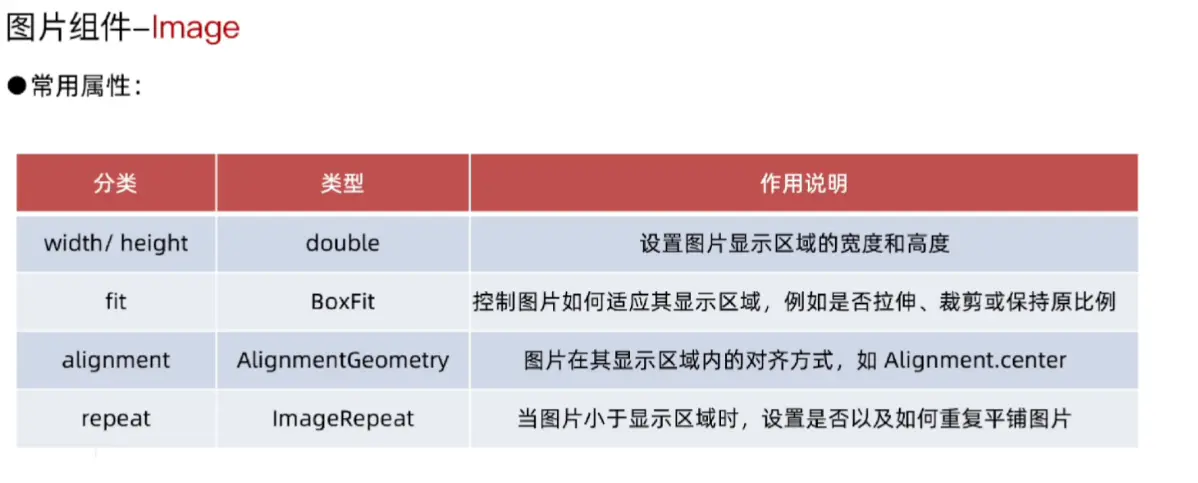
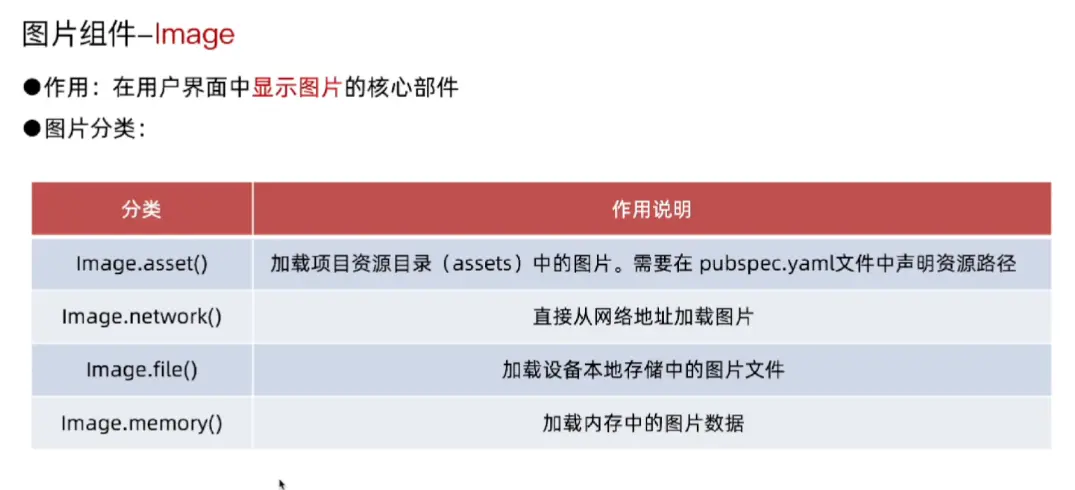
image.asset(本地资源)
pubspec.yaml启用图片文件夹
将资源assets功能启用
assets:
    - images/a_dot_burr.jpeg
    - images/a_dot_ham.jpeg
这个需要一些配置
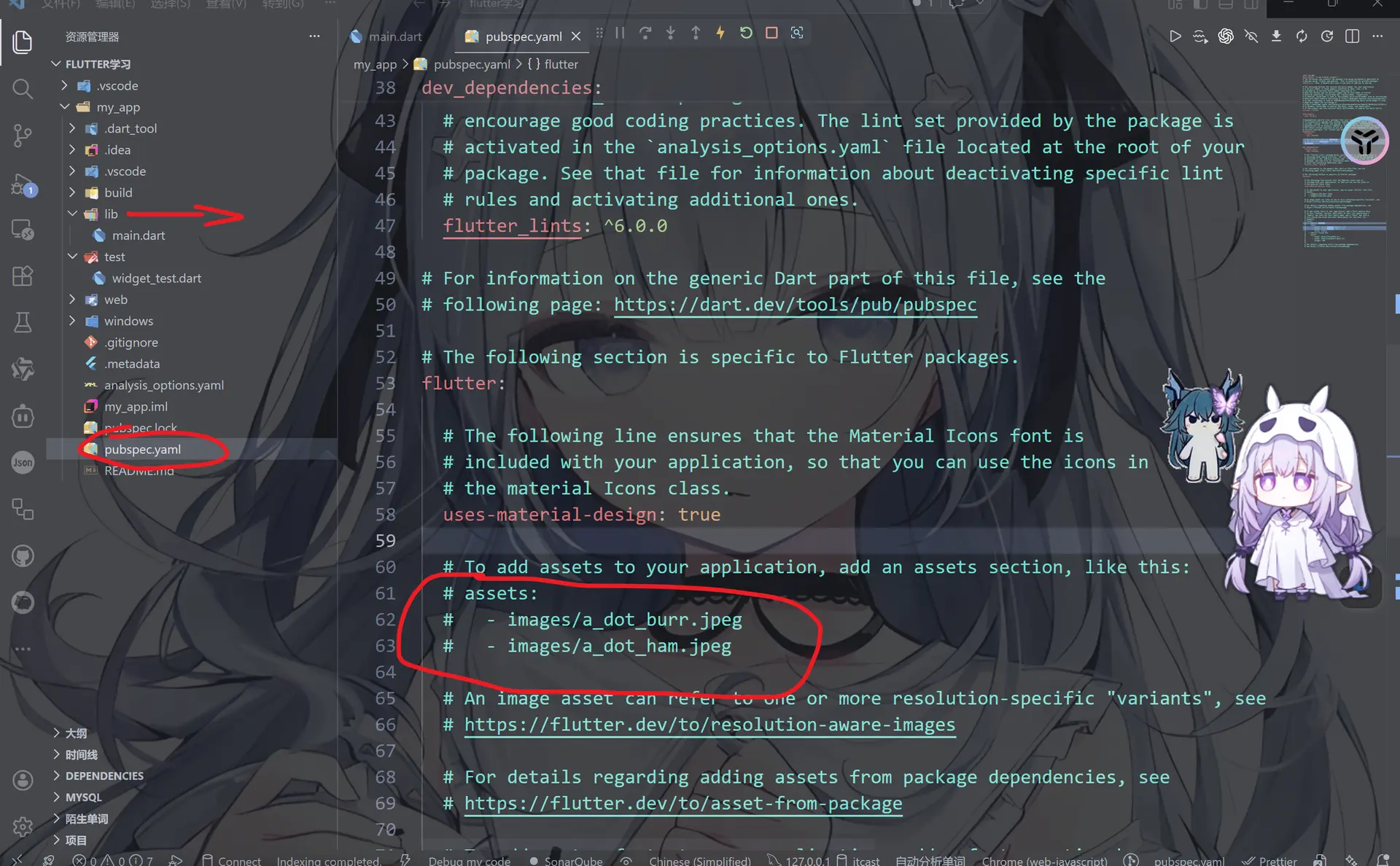
例如我们将图片放到这个images文件夹
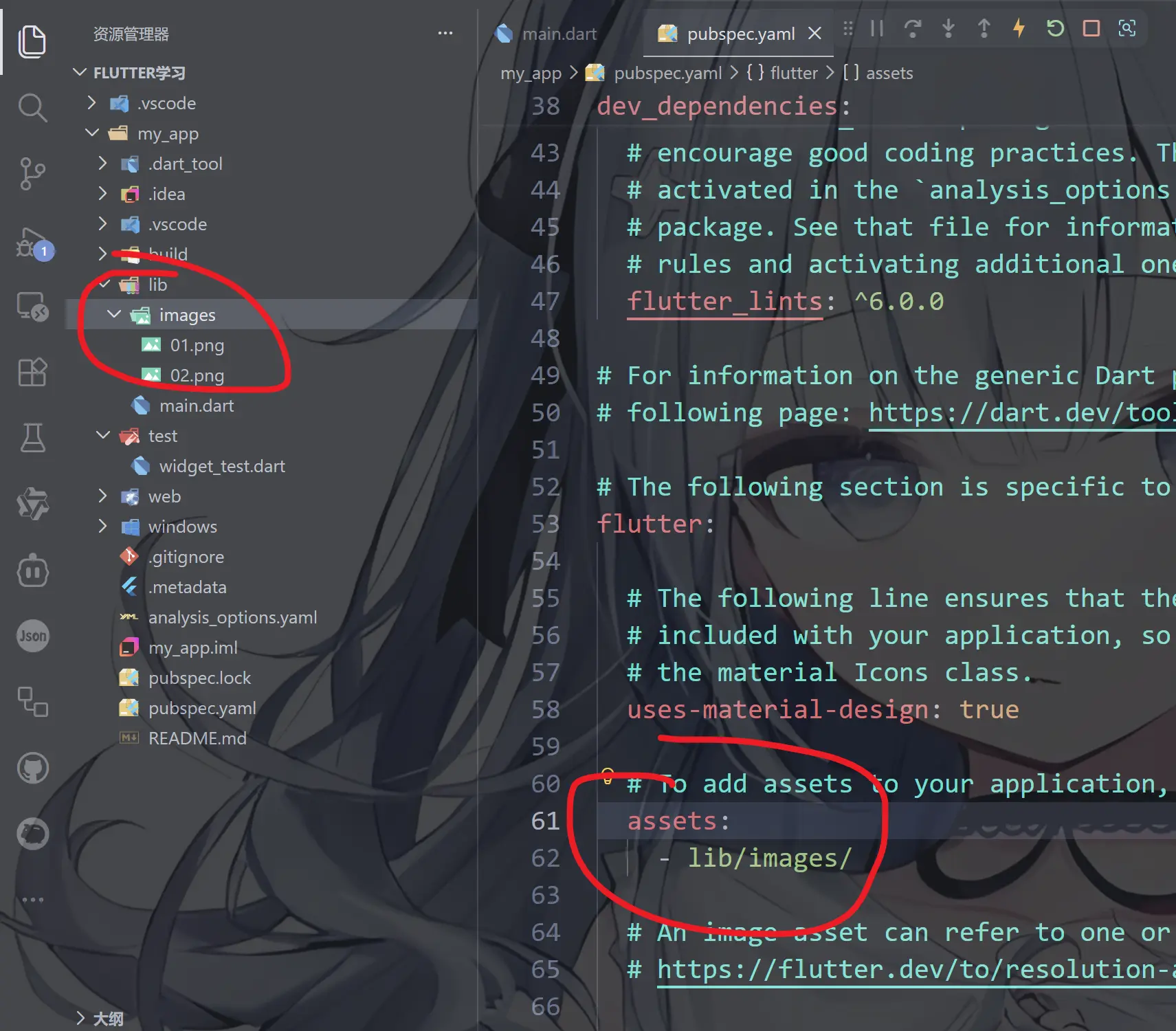
然后在main.dart中启用资源,同时重新run执行
import 'package:flutter/material.dart';
void main() {
runApp(MainPage());
}
class MainPage extends StatelessWidget {
const MainPage({super.key});
Widget build(BuildContext context) {
return MaterialApp(
title: "终末地AI群聊",
home: Scaffold(
appBar: AppBar(centerTitle: true, title: Text("终末地AI群聊")),
body: Container(
width: double.infinity,
height: double.infinity,
color: Colors.white,
alignment: Alignment.center,
child: Image.asset("lib/images/01.png"),
),
bottomNavigationBar: Container(
height: 80,
child: Center(child: Text("终末地AI群聊")),
),
),
);
}
}
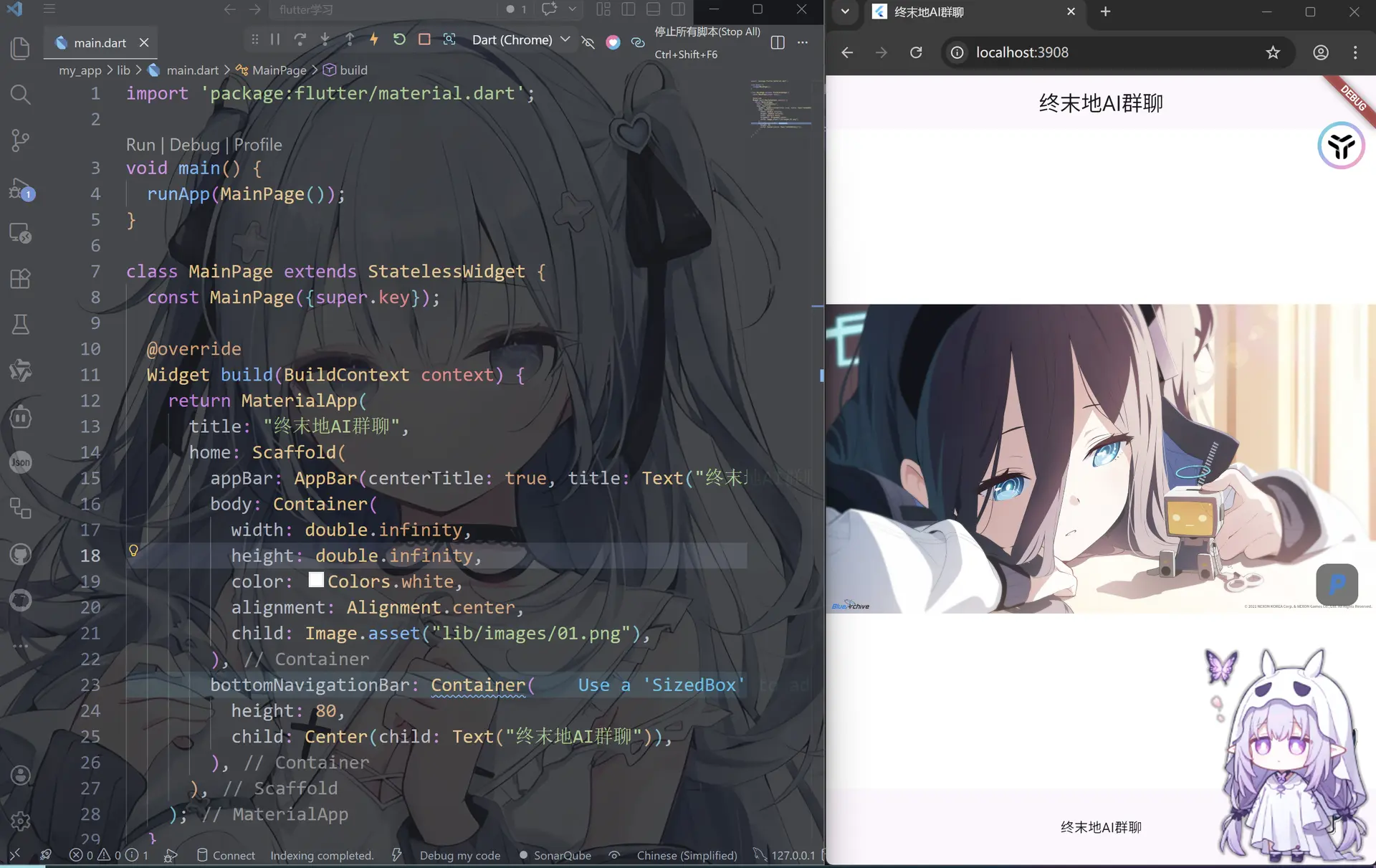
当然也可以使用width和hight来控制图片的大小
child: Image.asset("lib/images/01.png", width: 500, fit: BoxFit.contain),
image.network(网络资源)
这个不需要在pubspec.yaml 直接使用就行了,把网址或者库粘贴进去
Image.network('https://example.com/image.png')
但是问题是,这个东西需要联网,否则图片会显示不出来, 除此之外, Android/HarmonyOS/iOS使用Image.network需要配置网络权限
而且如果图片的源头断了也不会显示出来
文本输入组件-TextField
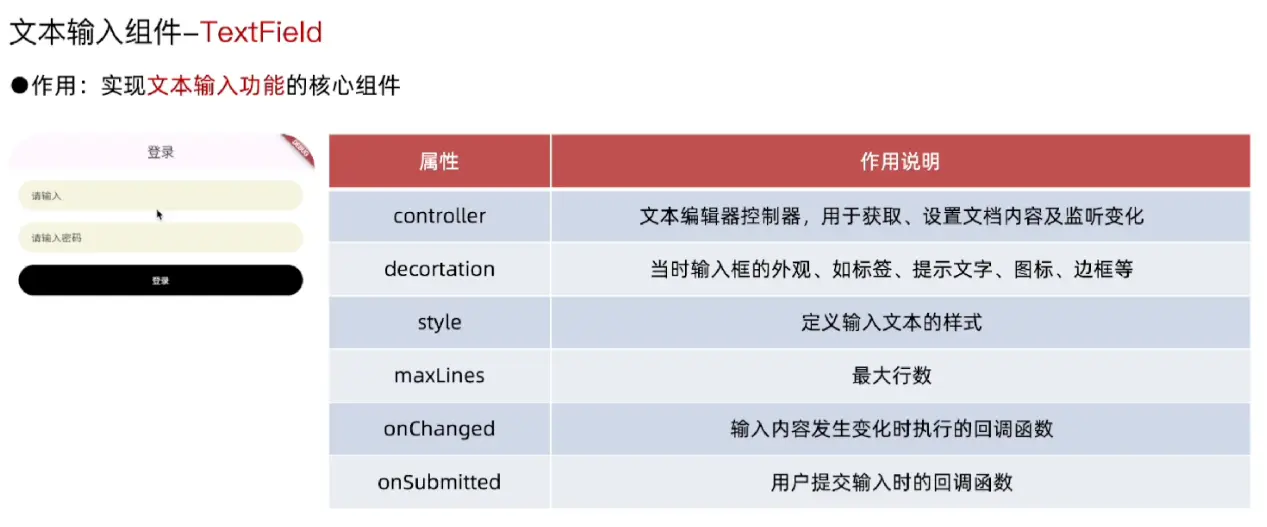
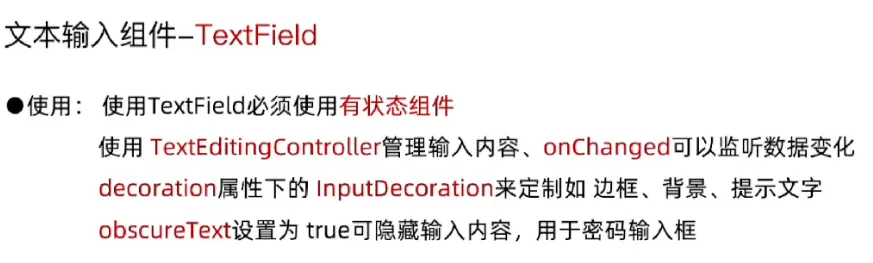
这里我们可以写一个登录界面,使用有状态组件StatefulWidget(因为这个是动态刷新的)
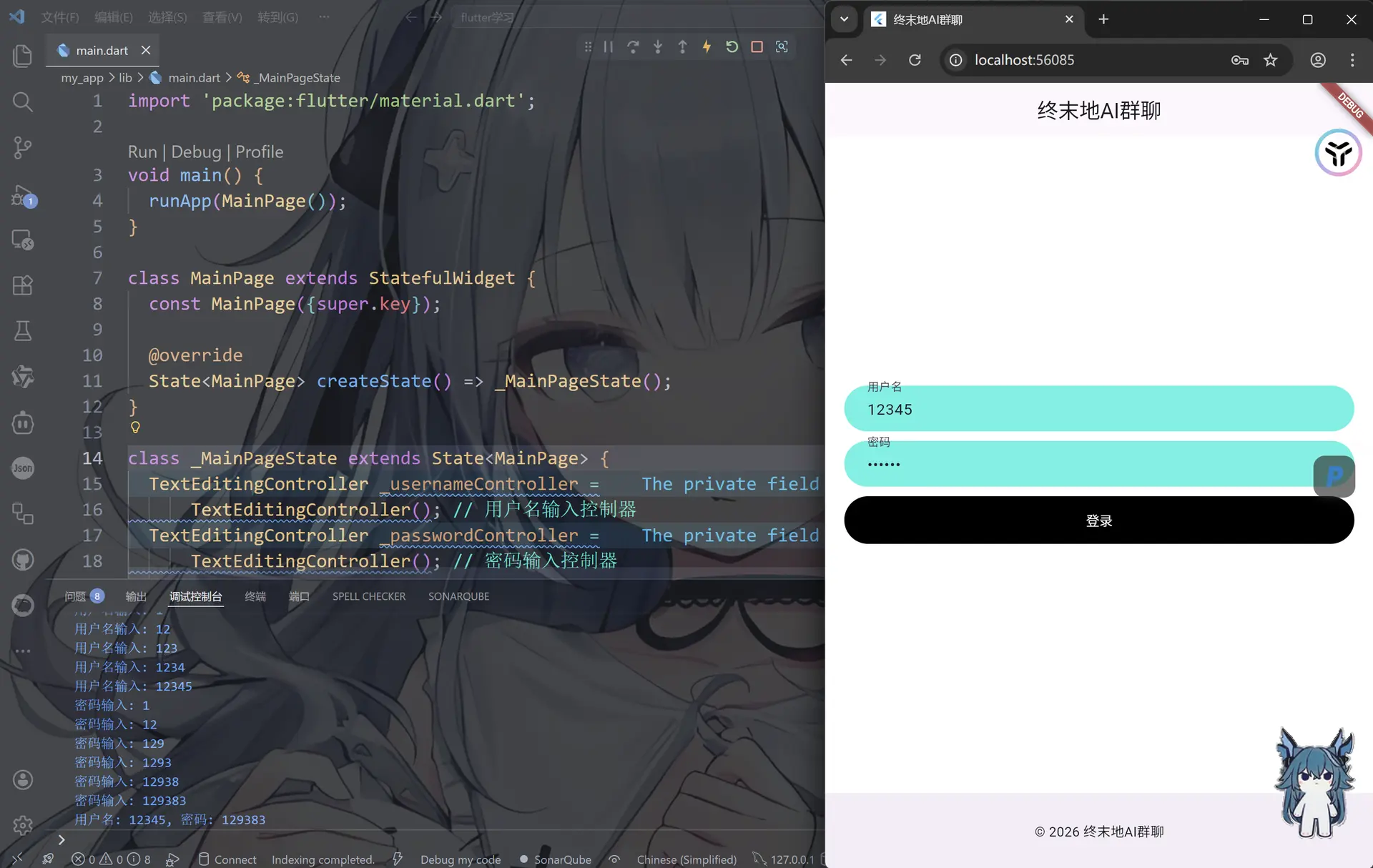
import 'package:flutter/material.dart';
void main() {
runApp(MainPage());
}
class MainPage extends StatefulWidget {
const MainPage({super.key});
State<MainPage> createState() => _MainPageState();
}
class _MainPageState extends State<MainPage> {
TextEditingController _usernameController =
TextEditingController(); // 实例化一个用户名输入控制器
TextEditingController _passwordController =
TextEditingController(); // 实例化一个密码输入控制器
Widget build(BuildContext context) {
return MaterialApp(
title: "终末地AI群聊",
home: Scaffold(
appBar: AppBar(centerTitle: true, title: Text("终末地AI群聊")),
body: Container(
padding: EdgeInsets.all(20),
color: Colors.white,
child: Column(
mainAxisAlignment: MainAxisAlignment.center, //界面元素垂直居中
children: [
TextField(
controller: _usernameController, // 绑定用户名输入控制器
onChanged: (value) => print("用户名输入: $value"), // 用户名输入时的回调
onSubmitted: (value) => print("用户名提交: $value"), // 用户名提交时的回调
decoration: InputDecoration(
contentPadding: EdgeInsets.only(
left: 20,
), // 输入框内容内边距,这里设置为左侧20像素
hintText: "请输入用户名", // 输入框提示文本
fillColor: const Color.fromARGB(255, 85, 242, 227), // 输入框背景颜色
filled: true, // 是否填充背景颜色
labelText: "用户名", // 输入框标签
border: OutlineInputBorder(
// 输入框边框样式,这里设置为无边框并且圆角
borderSide: BorderSide.none,
borderRadius: BorderRadius.circular(25),
),
),
),
SizedBox(height: 10), // 输入框之间的间距
TextField(
controller: _passwordController, // 绑定密码输入控制器
obscureText: true, // 隐藏输入内容,适用于密码输入
onChanged: (value) => print("密码输入: $value"), // 密码输入时的回调
onSubmitted: (value) => print("密码提交: $value"), // 密码提交时的回调
decoration: InputDecoration(
contentPadding: EdgeInsets.only(
left: 20,
), // 输入框内容内边距,这里设置为左侧20像素
hintText: "请输入密码", // 输入框提示文本
fillColor: const Color.fromARGB(255, 85, 242, 227), // 输入框背景颜色
filled: true, // 是否填充背景颜色
labelText: "密码", // 输入框标签
border: OutlineInputBorder(
// 输入框边框样式,这里设置为无边框并且圆角
borderSide: BorderSide.none,
borderRadius: BorderRadius.circular(25),
),
),
),
SizedBox(height: 10), // 输入框和按钮之间的间距
Container(
height: 50,
width: double.infinity,
decoration: BoxDecoration(
// 按钮的装饰,这里设置为黑色背景和圆角
color: Colors.black,
borderRadius: BorderRadius.circular(25),
),
child: TextButton(
// 登录按钮,使用TextButton组件,并且设置按钮文本颜色为白色
onPressed: () {
print(
"用户名: ${_usernameController.text}, 密码: ${_passwordController.text}",
);
},
child: Text("登录", style: TextStyle(color: Colors.white)),
),
),
],
),
),
bottomNavigationBar: BottomAppBar(
child: Container(
height: 50.0,
child: Center(child: Text("© 2026 终末地AI群聊")),
),
),
),
);
}
}
常用滚动组件
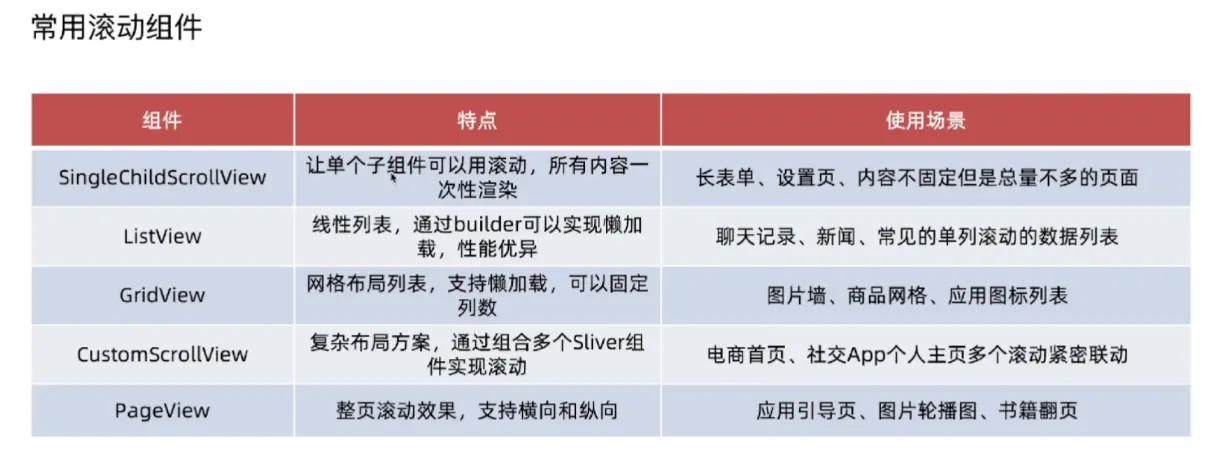
SingleChildScrollView
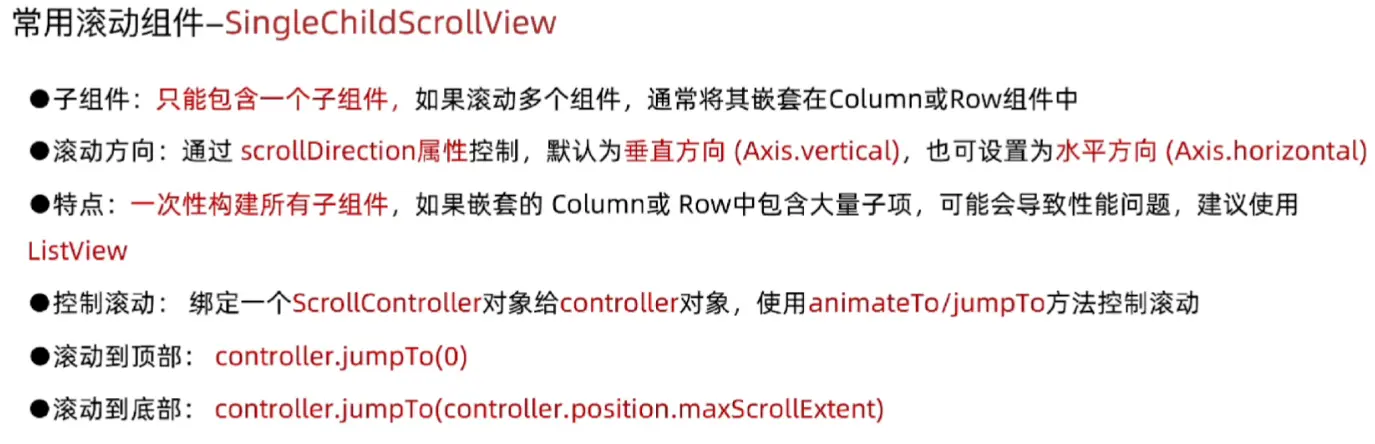
包裹个组件,让单个组件具备滚动能
import 'package:flutter/material.dart';
void main() {
runApp(MainPage());
}
class MainPage extends StatefulWidget {
const MainPage({super.key});
State<MainPage> createState() => _MainPageState();
}
class _MainPageState extends State<MainPage> {
TextEditingController _usernameController =
TextEditingController(); // 用户名输入控制器
TextEditingController _passwordController =
TextEditingController(); // 密码输入控制器
Widget build(BuildContext context) {
return MaterialApp(
title: "终末地AI群聊",
home: Scaffold(
appBar: AppBar(centerTitle: true, title: Text("终末地AI群聊")),
body: SingleChildScrollView(
child: Column(
children: List.generate(100, (index) {
return Container(
margin: EdgeInsets.only(top: 10),
width: double.infinity,
color: Colors.lightBlueAccent,
height: 100,
child: Text(
"这是第${index + 1}条消息",
style: TextStyle(
color: Colors.white,
fontSize: 20,
fontWeight: FontWeight.bold,
),
),
alignment: Alignment.center,
);
}),
),
),
bottomNavigationBar: BottomAppBar(
child: Container(
height: 50.0,
child: Center(child: Text("© 2026 终末地AI群聊")),
),
),
),
);
}
}
然后我们可以增加一个回到首页的按钮
import 'package:flutter/material.dart';
void main() {
runApp(MainPage());
}
class MainPage extends StatefulWidget {
const MainPage({super.key});
State<MainPage> createState() => _MainPageState();
}
class _MainPageState extends State<MainPage> {
ScrollController _scrollController = ScrollController(); //滚动控制器
Widget build(BuildContext context) {
return MaterialApp(
title: "终末地AI群聊",
home: Scaffold(
appBar: AppBar(centerTitle: true, title: Text("终末地AI群聊")),
body: Stack(
// 使用Stack布局,允许内容滚动
children: [
SingleChildScrollView(
controller: _scrollController, //添加滚动控制器
padding: EdgeInsets.all(20), // 添加内边距
child: Column(
children: List.generate(100, (index) {
return Container(
margin: EdgeInsets.only(top: 10),
width: double.infinity,
color: Colors.lightBlueAccent,
height: 100,
child: Text(
"这是第${index + 1}条消息",
style: TextStyle(
color: Colors.white,
fontSize: 20,
fontWeight: FontWeight.bold,
),
),
alignment: Alignment.center,
);
}),
),
),
Positioned(
right: 10,
bottom: 10,
child: GestureDetector(
onTap: () {
print("回到顶部按钮已被点击");
//_scrollController.jumpTo(0);
_scrollController.animateTo(
0,
duration: Duration(seconds: 1),
curve: Curves.ease,
);
},
child: Container(
decoration: BoxDecoration(
borderRadius: BorderRadius.circular(25),
color: Colors.cyanAccent,
),
width: 70,
height: 70,
alignment: Alignment.center,
child: Text(
"回到顶部",
style: TextStyle(
fontSize: 15,
color: Colors.white,
fontWeight: FontWeight.bold,
),
),
),
),
),
Positioned(
right: 10,
top: 10,
child: GestureDetector(
onTap: () {
print("回到底部按钮已被点击");
// _scrollController.jumpTo(
// _scrollController.position.maxScrollExtent,
// );
_scrollController.animateTo(
_scrollController.position.maxScrollExtent,
duration: Duration(seconds: 1),
curve: Curves.ease,
);
},
child: Container(
decoration: BoxDecoration(
borderRadius: BorderRadius.circular(25),
color: Colors.cyanAccent,
),
width: 70,
height: 70,
alignment: Alignment.center,
child: Text(
"回到底部",
style: TextStyle(
fontSize: 15,
color: Colors.white,
fontWeight: FontWeight.bold,
),
),
),
),
),
],
),
bottomNavigationBar: BottomAppBar(
child: Container(
height: 50.0,
child: Center(child: Text("© 2026 终末地AI群聊")),
),
),
),
);
}
}
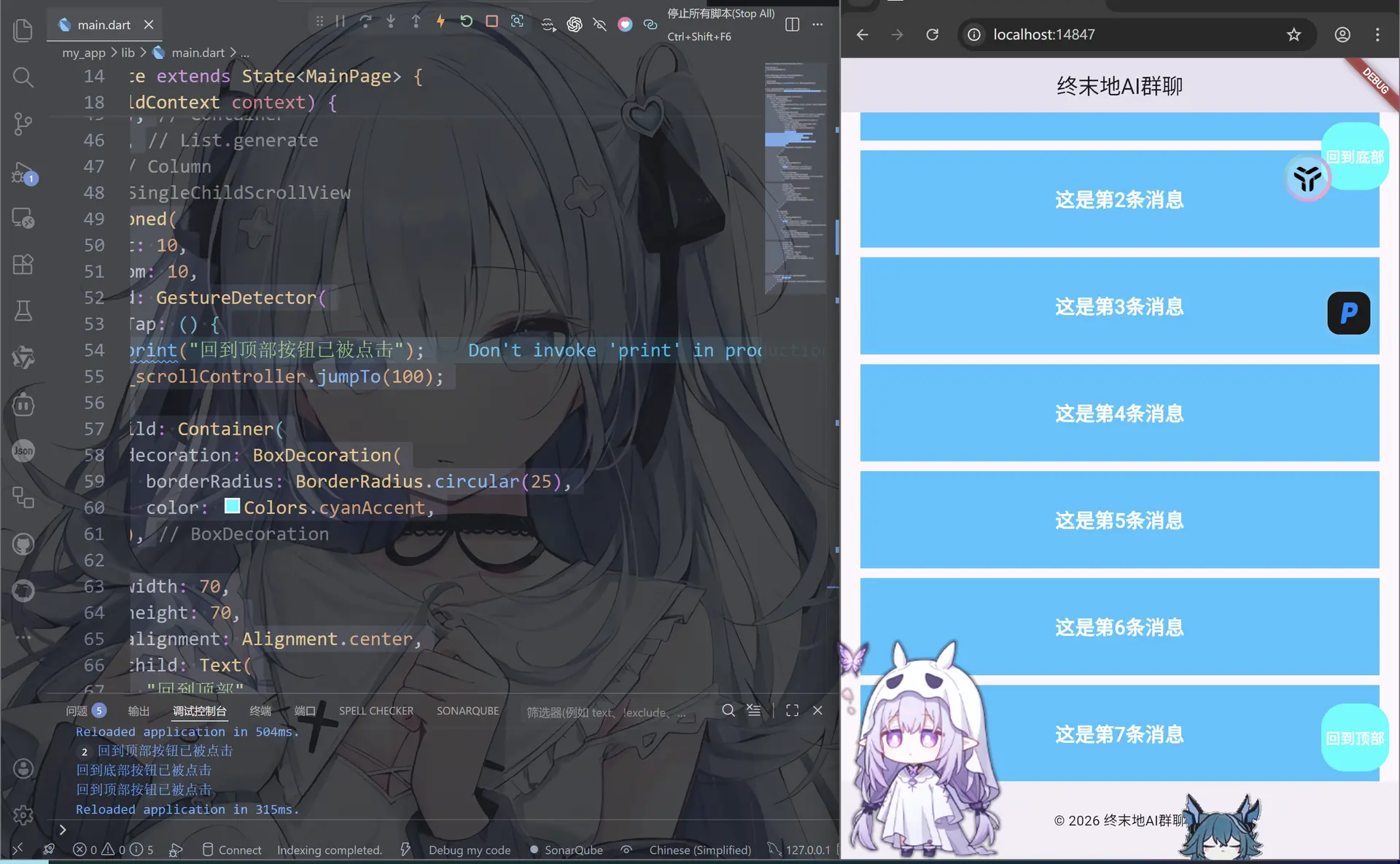
其中这里面涉及的两个方法—jumpTo和animateTo这里细说一下
jumpTo(直接跳转)
_scrollController.jumpTo(0);
本质:瞬间跳转到指定滚动位置(没有动画)
参数只有一个
| 值 | 含义 |
|---|---|
0 |
顶部 |
_scrollController.position.maxScrollExtent |
底部 |
| 任意数字 | 指定位置 |
特点
- 不会有任何过渡效果
- 立即生效
- 用户体验比较“生硬”
- 适合:
- 初始化位置
- 强制修正滚动位置
- 不关心动画的场景
举例
_scrollController.jumpTo(
  _scrollController.position.maxScrollExtent,
);
效果就是: 一点击直接“啪”一下到底,没有滚动过程
animateTo(动画平滑)
animateTo(
  double offset, {
  required Duration duration,
  required Curve curve,
})
第一个参数offset(滚动位置)
| 值 | 含义 |
|---|---|
0 |
顶部 |
_scrollController.position.maxScrollExtent |
底部 |
| 任意数字 | 指定位置 |
这个和jumpTo是一样的
第二个参数duration(动画时长)
Duration(seconds: 1)
即动画持续时间为1秒
你可以这样写:
Duration(milliseconds: 300)
Duration(seconds: 2)
效果:
- 时间越短 → 越快
- 时间越长 → 越慢
第三个参数curves(动画曲线)
Curves.bounceIn
控制动画“运动方式”(非常重要)
常见曲线:
| 曲线 | 效果 |
|---|---|
Curves.linear |
匀速(最死板) |
Curves.ease |
平滑(推荐) |
Curves.easeIn |
先慢后快 |
Curves.easeOut |
先快后慢 |
Curves.easeInOut |
两头慢中间快 |
Curves.bounceIn |
弹跳进入(你现在用的) |
Curves.elasticOut |
弹簧效果 |
ListView

children 模式
这个也是最普通的模式
import 'package:flutter/material.dart';
void main() {
runApp(MainPage());
}
class MainPage extends StatefulWidget {
const MainPage({super.key});
State<MainPage> createState() => _MainPageState();
}
class _MainPageState extends State<MainPage> {
Widget build(BuildContext context) {
return MaterialApp(
title: "终末地AI群聊",
home: Scaffold(
appBar: AppBar(centerTitle: true, title: Text("终末地AI群聊")),
body: ListView(
children: List.generate(100, (index) {
return Container(
margin: EdgeInsets.only(top: 10),
width: double.infinity,
color: Colors.lightBlueAccent,
height: 100,
child: Text(
"这是第${index + 1}条消息",
style: TextStyle(
color: Colors.white,
fontSize: 20,
fontWeight: FontWeight.bold,
),
),
alignment: Alignment.center,
);
}),
),
bottomNavigationBar: BottomAppBar(
child: Container(
height: 50.0,
child: Center(child: Text("© 2026 终末地AI群聊")),
),
),
),
);
}
}
builder模式
builder模式就是用来处理长列表或动态数据的首选和推荐方式
方式为接受一个itemBuilder回调函数来按需构建列表项,通过itemCount控制列表长度
特点是按需构建,不会在初始化时将所有列表项都创建,而是根据用户的滚动行为,动态的创建和销毁列表项
使用方式为ListView.builder(itemBuilder: ListView,itemCount: itemCount)
itemBuilder: (context, index) {
  return Text("$index");
}
| 参数 | 意思 |
|---|---|
| context | 当前上下文 |
| index | 第几个 |
import 'package:flutter/material.dart';
void main() {
runApp(MainPage());
}
class MainPage extends StatefulWidget {
const MainPage({super.key});
State<MainPage> createState() => _MainPageState();
}
class _MainPageState extends State<MainPage> {
Widget build(BuildContext context) {
return MaterialApp(
title: "终末地AI群聊",
home: Scaffold(
appBar: AppBar(centerTitle: true, title: Text("终末地AI群聊")),
body: ListView.builder(
itemCount: 100,//创建的数量
itemBuilder: (BuildContext context, int index) { //在builder里必须要有itemBuilder和返回值
return Container(
margin: EdgeInsets.only(top: 10),
width: double.infinity,
color: Colors.lightBlueAccent,
height: 100,
child: Text(
"这是第${index + 1}条消息",
style: TextStyle(
color: Colors.white,
fontSize: 20,
fontWeight: FontWeight.bold,
),
),
alignment: Alignment.center,
);
},
),
bottomNavigationBar: BottomAppBar(
child: Container(
height: 50.0,
child: Center(child: Text("© 2026 终末地AI群聊")),
),
),
),
);
}
}
separated模式
作用就是在ListView.builder的基础上,额外提供了构建分割线的能力
方式就是需要同时提供itemBuilder , separatorBuilder ,itemCount三个属性
使用方式为 ListView.separated(itemBuilder: itemBuilder, separatorBuilder: separatorBuilder, itemCount: itemCount)
三个参数分别为要构建的组件,组件之间的分割组件,和构建数量
import 'package:flutter/material.dart';
void main() {
runApp(MainPage());
}
class MainPage extends StatefulWidget {
const MainPage({super.key});
State<MainPage> createState() => _MainPageState();
}
class _MainPageState extends State<MainPage> {
Widget build(BuildContext context) {
return MaterialApp(
title: "终末地AI群聊",
home: Scaffold(
appBar: AppBar(centerTitle: true, title: Text("终末地AI群聊")),
body: ListView.separated(
itemBuilder: (BuildContext context, int index) {
return Container(
margin: EdgeInsets.only(top: 10),
width: double.infinity,
color: Colors.lightBlueAccent,
height: 100,
child: Text(
"这是第${index + 1}条消息",
style: TextStyle(
color: Colors.white,
fontSize: 20,
fontWeight: FontWeight.bold,
),
),
alignment: Alignment.center,
);
},
separatorBuilder: (BuildContext context, int index) {
return SizedBox(height: 5);//在每个生成的组件之间添加一个间隔,当然这里也可以用Container
},
itemCount: 100,
),
bottomNavigationBar: BottomAppBar(
child: Container(
height: 50.0,
child: Center(child: Text("© 2026 终末地AI群聊")),
),
),
),
);
}
}
GridView
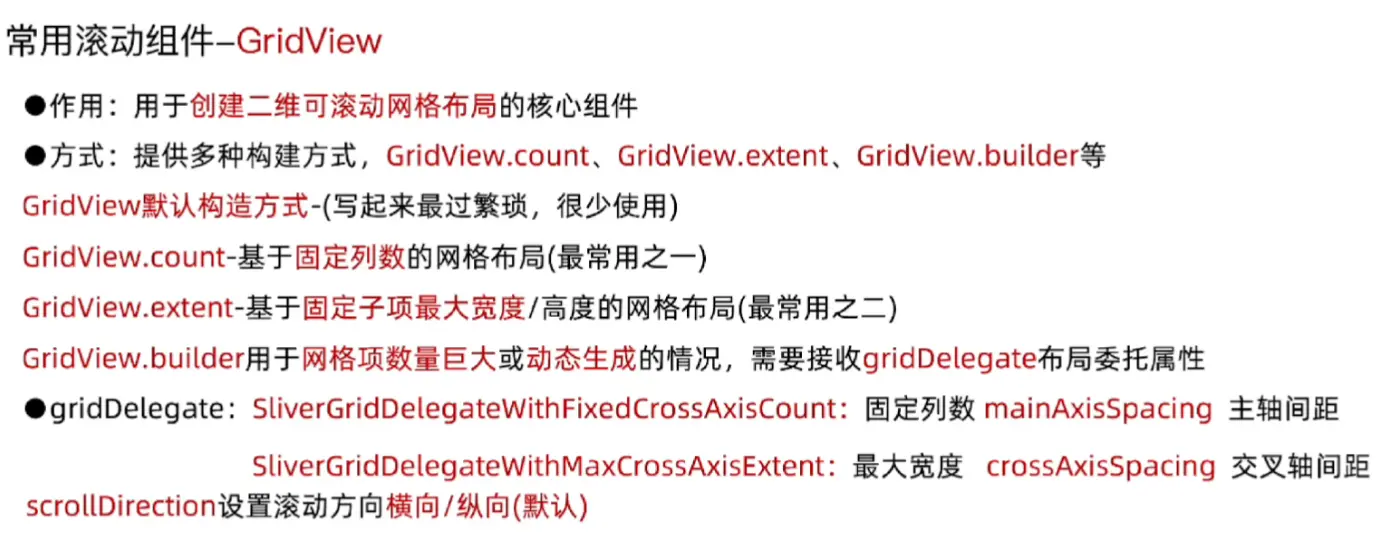
GridView.count
作用: 使用GridView.count创建固定列数网络
使用方式为 GridView.count(crossAxisCount: crossAxisCount)
import 'package:flutter/material.dart';
void main() {
runApp(MainPage());
}
class MainPage extends StatefulWidget {
const MainPage({super.key});
State<MainPage> createState() => _MainPageState();
}
class _MainPageState extends State<MainPage> {
Widget build(BuildContext context) {
return MaterialApp(
title: "终末地AI群聊",
home: Scaffold(
appBar: AppBar(centerTitle: true, title: Text("终末地AI群聊")),
body: GridView.count(
crossAxisCount: 3,
padding: EdgeInsets.all(10.0),//边距20
mainAxisSpacing: 10,//主轴间距
crossAxisSpacing: 10,//交叉轴间距
children: List.generate(100, (int index) {
return Container(
alignment: Alignment.center,
color: Colors.lightBlueAccent,
child: Text(
"第${index + 1} 个Item",
style: TextStyle(fontSize: 20, color: Colors.white),
),
);
}),
),
bottomNavigationBar: BottomAppBar(
child: Container(
height: 50.0,
child: Center(child: Text("© 2026 终末地AI群聊")),
),
),
),
);
}
}
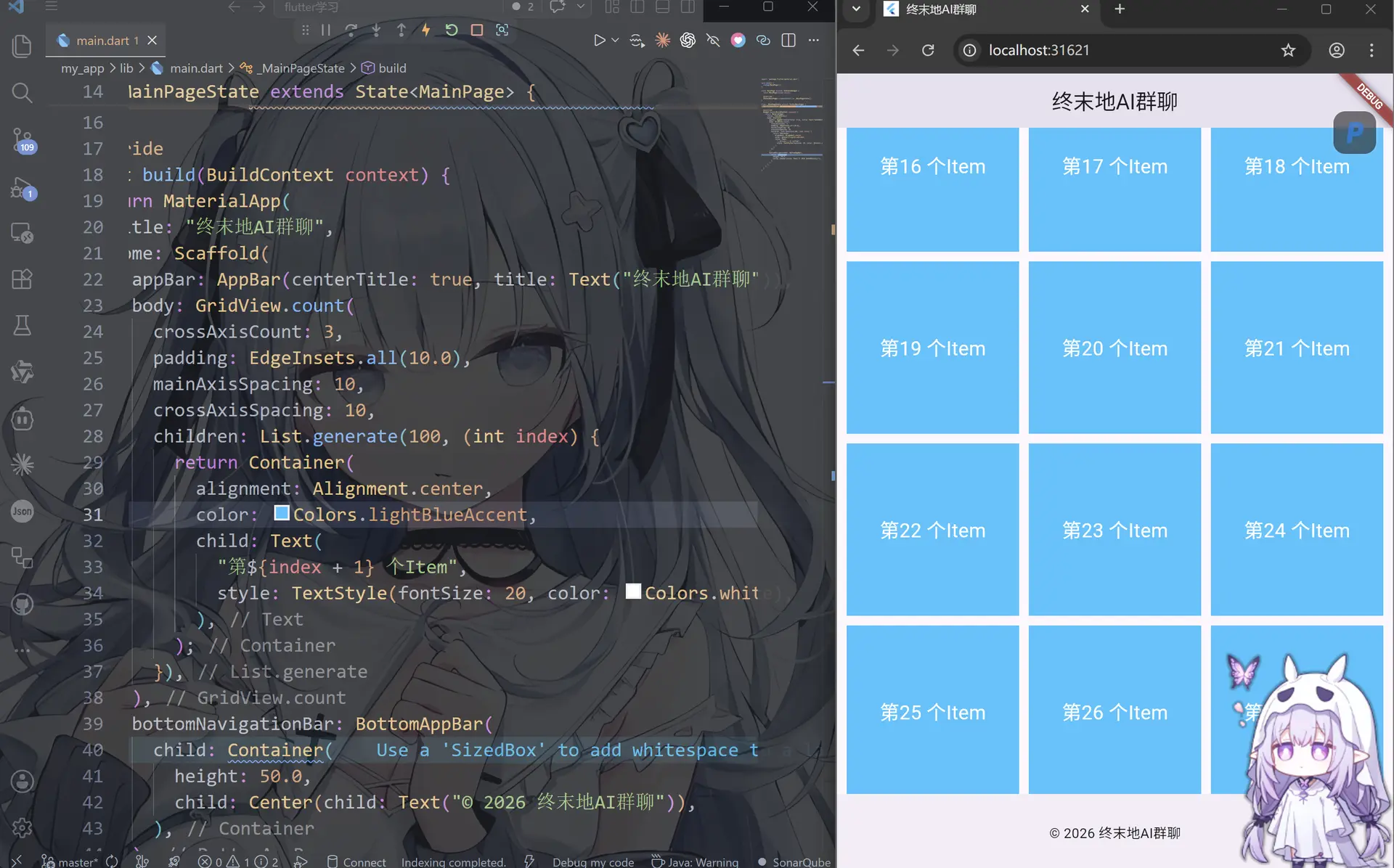
想想这个可以用来干什么? 没错! 可以制作相册!你打开你的手机相册看看是不是差不多的
还可以这么干
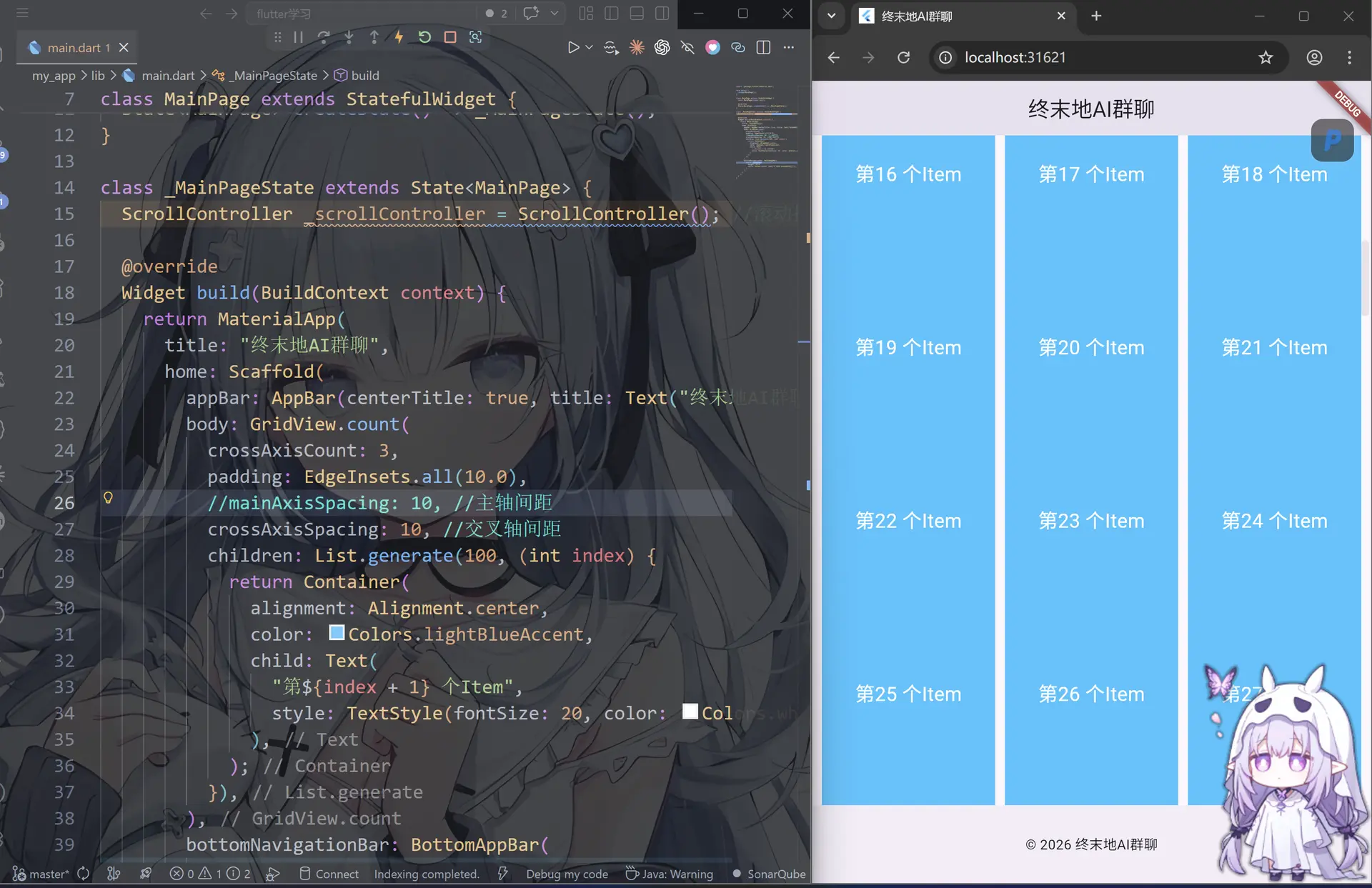
我们这个默认情况下是竖直向下滚动的也就是crollDirection: Axis.vertical
还可以这样实现横向滚动翻阅
import 'package:flutter/material.dart';
void main() {
runApp(MainPage());
}
class MainPage extends StatefulWidget {
const MainPage({super.key});
State<MainPage> createState() => _MainPageState();
}
class _MainPageState extends State<MainPage> {
ScrollController _scrollController = ScrollController(); //滚动控制器
Widget build(BuildContext context) {
return MaterialApp(
title: "终末地AI群聊",
home: Scaffold(
appBar: AppBar(centerTitle: true, title: Text("终末地AI群聊")),
body: GridView.count(
scrollDirection: Axis.horizontal,//按住shify滚动鼠标滚轮实现横向滚动
crossAxisCount: 3,
padding: EdgeInsets.all(10.0),
mainAxisSpacing: 10, //主轴间距
crossAxisSpacing: 10, //交叉轴间距
children: List.generate(100, (int index) {
return Container(
alignment: Alignment.center,
color: Colors.lightBlueAccent,
child: Text(
"第${index + 1} 个Item",
style: TextStyle(fontSize: 20, color: Colors.white),
),
);
}),
),
bottomNavigationBar: BottomAppBar(
child: Container(
height: 50.0,
child: Center(child: Text("© 2026 终末地AI群聊")),
),
),
),
);
}
}
GridView.count以列数为优先。指定格多少列,Flutter动计算列的宽度,在空间内均匀排列
GridView.extent
这个很有意思,因为这个拖动改变窗口大小的时候,组件会自适应位置,就像模态窗口一样
依旧这个默认的是 scrollDirection: Axis.vertical模式
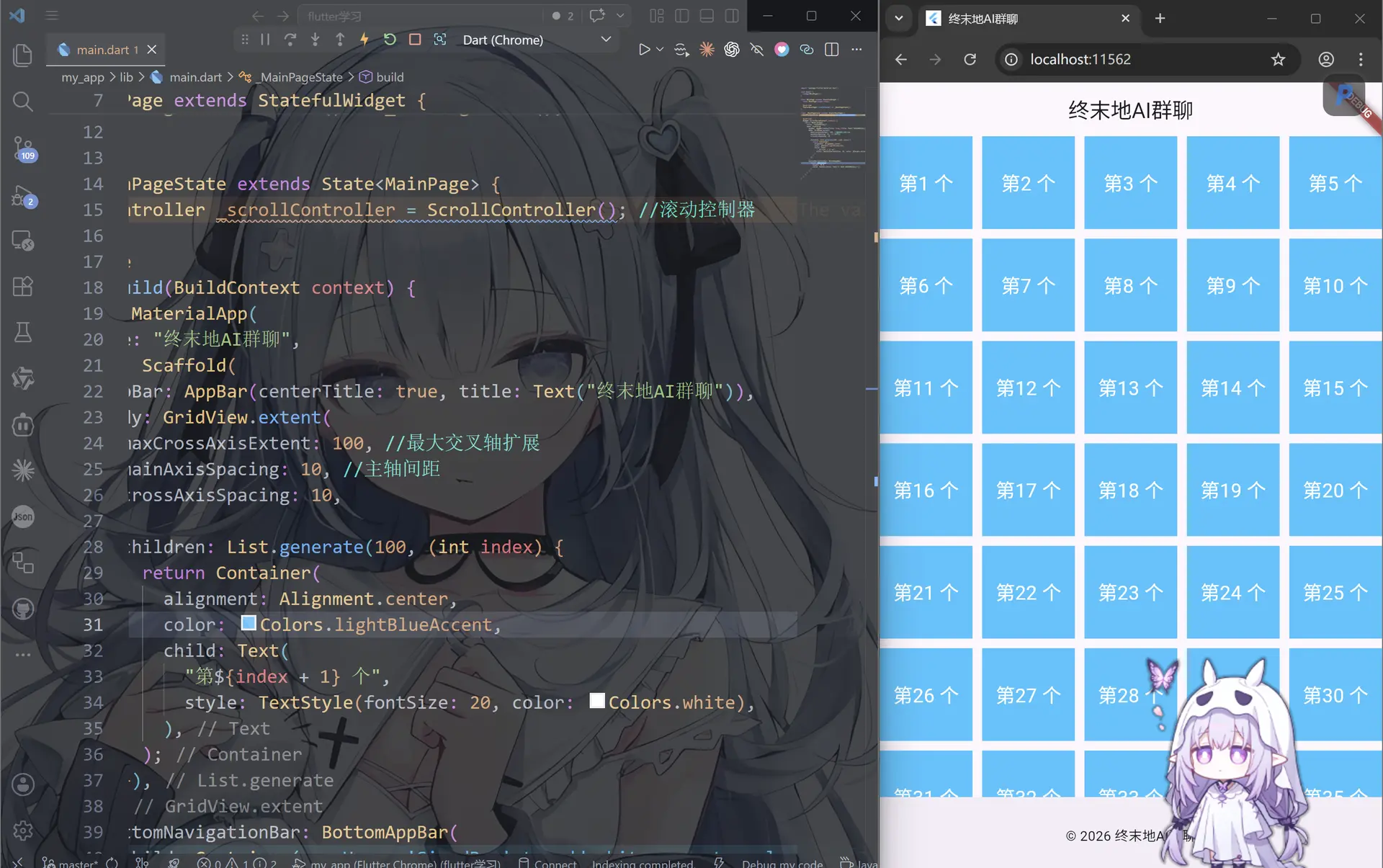
import 'package:flutter/material.dart';
void main() {
runApp(MainPage());
}
class MainPage extends StatefulWidget {
const MainPage({super.key});
State<MainPage> createState() => _MainPageState();
}
class _MainPageState extends State<MainPage> {
Widget build(BuildContext context) {
return MaterialApp(
title: "终末地AI群聊",
home: Scaffold(
appBar: AppBar(centerTitle: true, title: Text("终末地AI群聊")),
body: GridView.extent(
maxCrossAxisExtent: 100, //最大交叉轴扩展
mainAxisSpacing: 10, //主轴间距
crossAxisSpacing: 10,
scrollDirection: Axis.vertical,
padding: EdgeInsets.all(10),
children: List.generate(100, (int index) {
return Container(
alignment: Alignment.center,
color: Colors.lightBlueAccent,
child: Text(
"第${index + 1} 个",
style: TextStyle(fontSize: 20, color: Colors.white),
),
);
}),
),
bottomNavigationBar: BottomAppBar(
child: Container(
height: 50.0,
child: Center(child: Text("© 2026 终末地AI群聊")),
),
),
),
);
}
}
GridView.extent通过maxCrossAxisExtent设置子项最大宽度/高度来计算横向或者纵向有多少列
GridView.builder
作用:使GridView.builder实现动态长网格-(懒加载,只渲染可见区域)
注意;接收gridDelegate布局委托,itemBuilder构造函数,itemCount构造数量
使用方式GridView.builder(gridDelegate: gridDelegate, itemBuilder: itemBuilder)
SliverGridDelegateWithFixedCrossAxisCount
import 'package:flutter/material.dart';
void main() {
runApp(MainPage());
}
class MainPage extends StatefulWidget {
const MainPage({super.key});
State<MainPage> createState() => _MainPageState();
}
class _MainPageState extends State<MainPage> {
Widget build(BuildContext context) {
return MaterialApp(
title: "终末地AI群聊",
home: Scaffold(
appBar: AppBar(centerTitle: true, title: Text("终末地AI群聊")),
body: GridView.builder(
gridDelegate: SliverGridDelegateWithFixedCrossAxisCount(
crossAxisCount: 3, //行数
mainAxisSpacing: 10, //主轴间距
crossAxisSpacing: 10, //交叉轴间距
),
itemBuilder: (BuildContext context, int index) {
return Container(
alignment: Alignment.center,
color: Colors.lightBlueAccent,
child: Text(
"第${index + 1} 个",
style: TextStyle(fontSize: 20, color: Colors.white),
),
);
},
),
bottomNavigationBar: BottomAppBar(
child: Container(
height: 50.0,
child: Center(child: Text("© 2026 终末地AI群聊")),
),
),
),
);
}
}
SliverGridDelegateWithMaxCrossAxisExtent
同样的,刚才说了extent就是组件自适应窗口,这里也是
import 'package:flutter/material.dart';
void main() {
runApp(MainPage());
}
class MainPage extends StatefulWidget {
const MainPage({super.key});
State<MainPage> createState() => _MainPageState();
}
class _MainPageState extends State<MainPage> {
//ScrollController _scrollController = ScrollController(); //滚动控制器
Widget build(BuildContext context) {
return MaterialApp(
title: "终末地AI群聊",
home: Scaffold(
appBar: AppBar(centerTitle: true, title: Text("终末地AI群聊")),
body: GridView.builder(
gridDelegate: SliverGridDelegateWithMaxCrossAxisExtent(
maxCrossAxisExtent: 100, //最大交叉轴扩展
mainAxisSpacing: 10, //主轴间距
crossAxisSpacing: 10, //交叉轴间距
),
itemBuilder: (BuildContext context, int index) {
return Container(
alignment: Alignment.center,
color: Colors.lightBlueAccent,
child: Text(
"第${index + 1} 个",
style: TextStyle(fontSize: 20, color: Colors.white),
),
);
},
),
bottomNavigationBar: BottomAppBar(
child: Container(
height: 50.0,
child: Center(child: Text("© 2026 终末地AI群聊")),
),
),
),
);
}
}
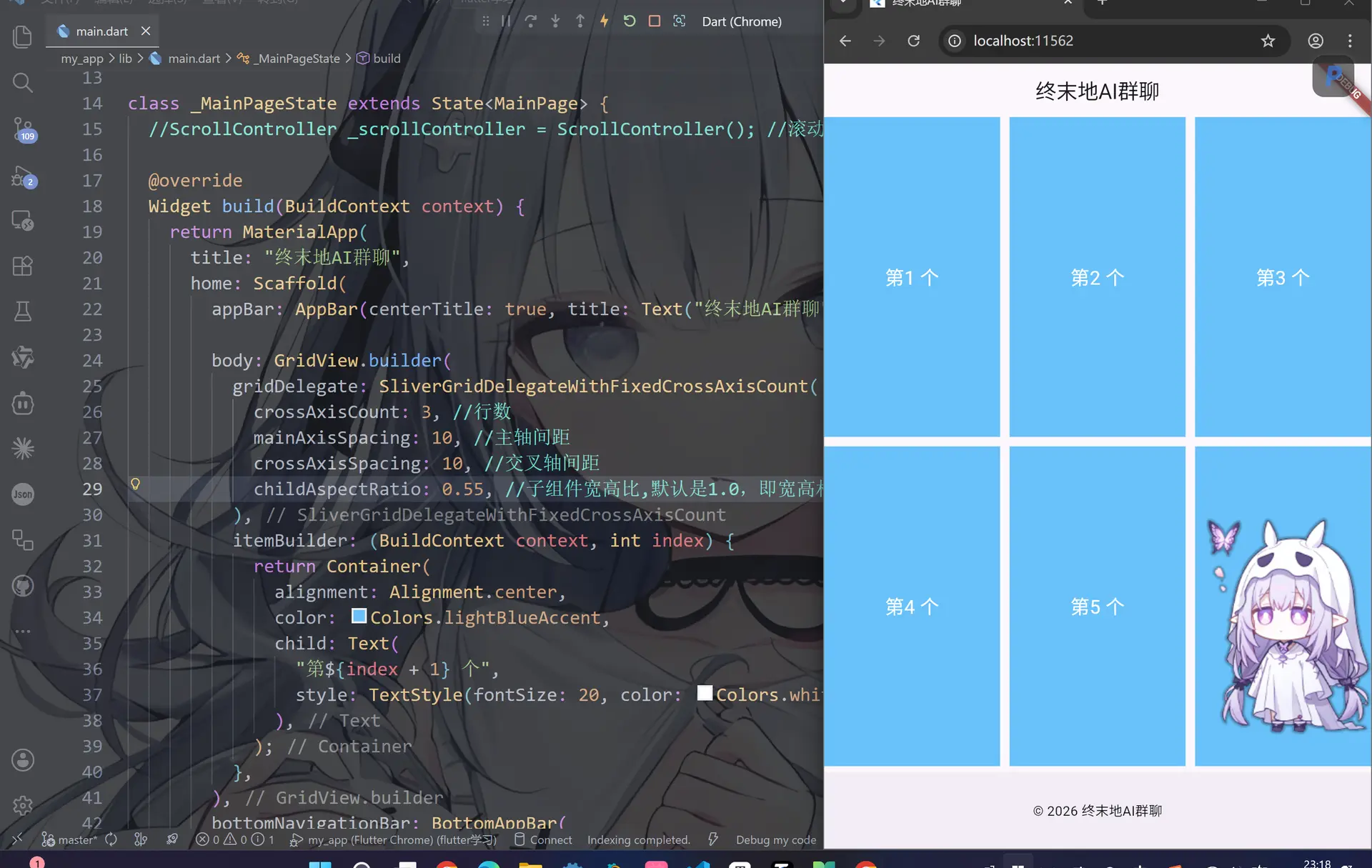
对了,关于子组件怎么调整大小呢,可以使用这个childAspectRatio属性
你看右边的界面像不像pinterest的界面(Pinterest就是一个插画平台,上面不仅有画师分享的作品还有设计师)
CustomScrollView
CustomScrollView 的 slivers 属性只接受 Sliver 系列的组件。普通 Widget(如 Container、Column)不能直接放入,必须通过 SliverToBoxAdapter 包装转换。
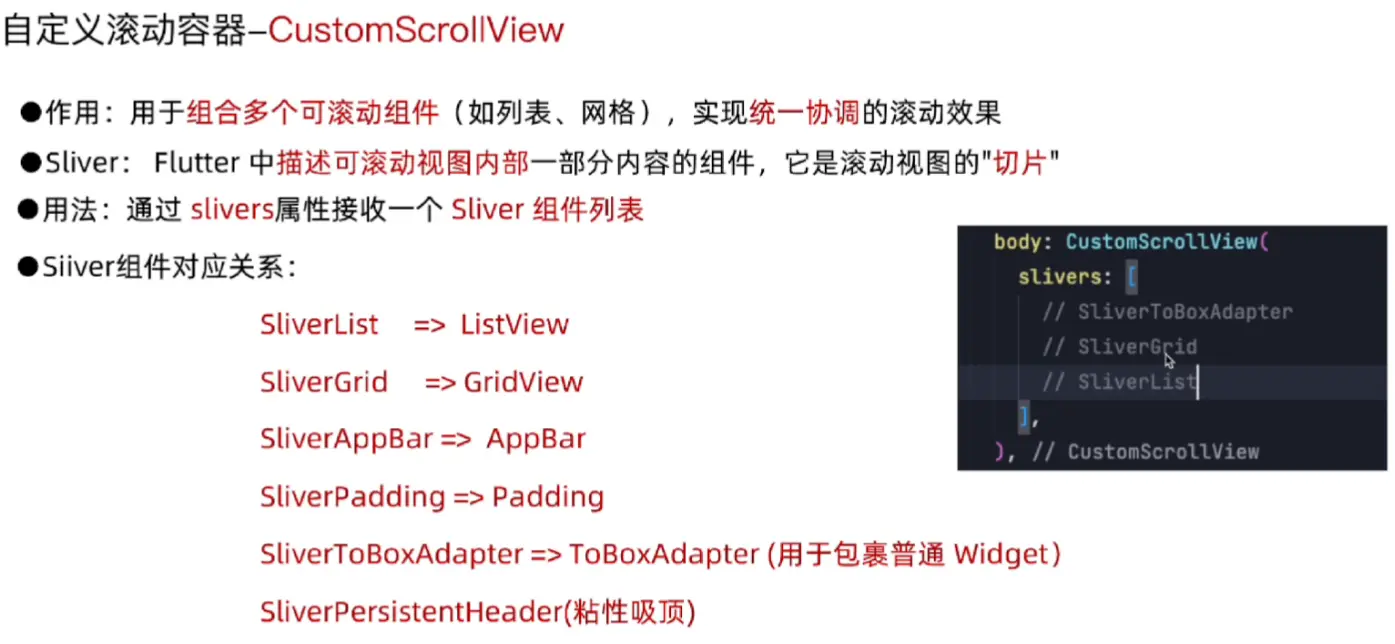
| 普通 Widget | 对应 Sliver | 用途 |
|---|---|---|
ListView |
SliverList |
垂直列表 |
GridView |
SliverGrid |
网格布局 |
AppBar |
SliverAppBar |
可折叠吸顶栏 |
| 任意 Widget | SliverToBoxAdapter |
包装单块非重复内容 |
| 自定义吸顶 | SliverPersistentHeader |
实现任意组件吸顶 |
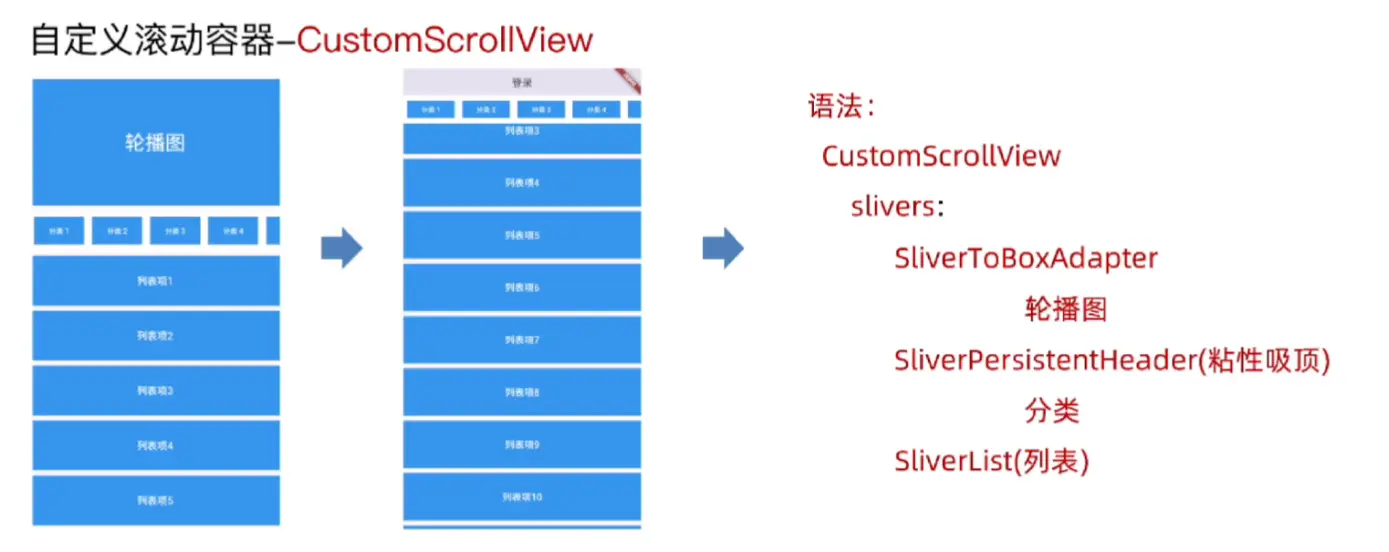
通常像淘宝这样的就遵循这样的结构
CustomScrollView(
  slivers: [
    SliverToBoxAdapter(...), // 轮播图
    SliverPersistentHeader(...), // 吸顶分类栏
    SliverList(...), // 列表
  ],
)
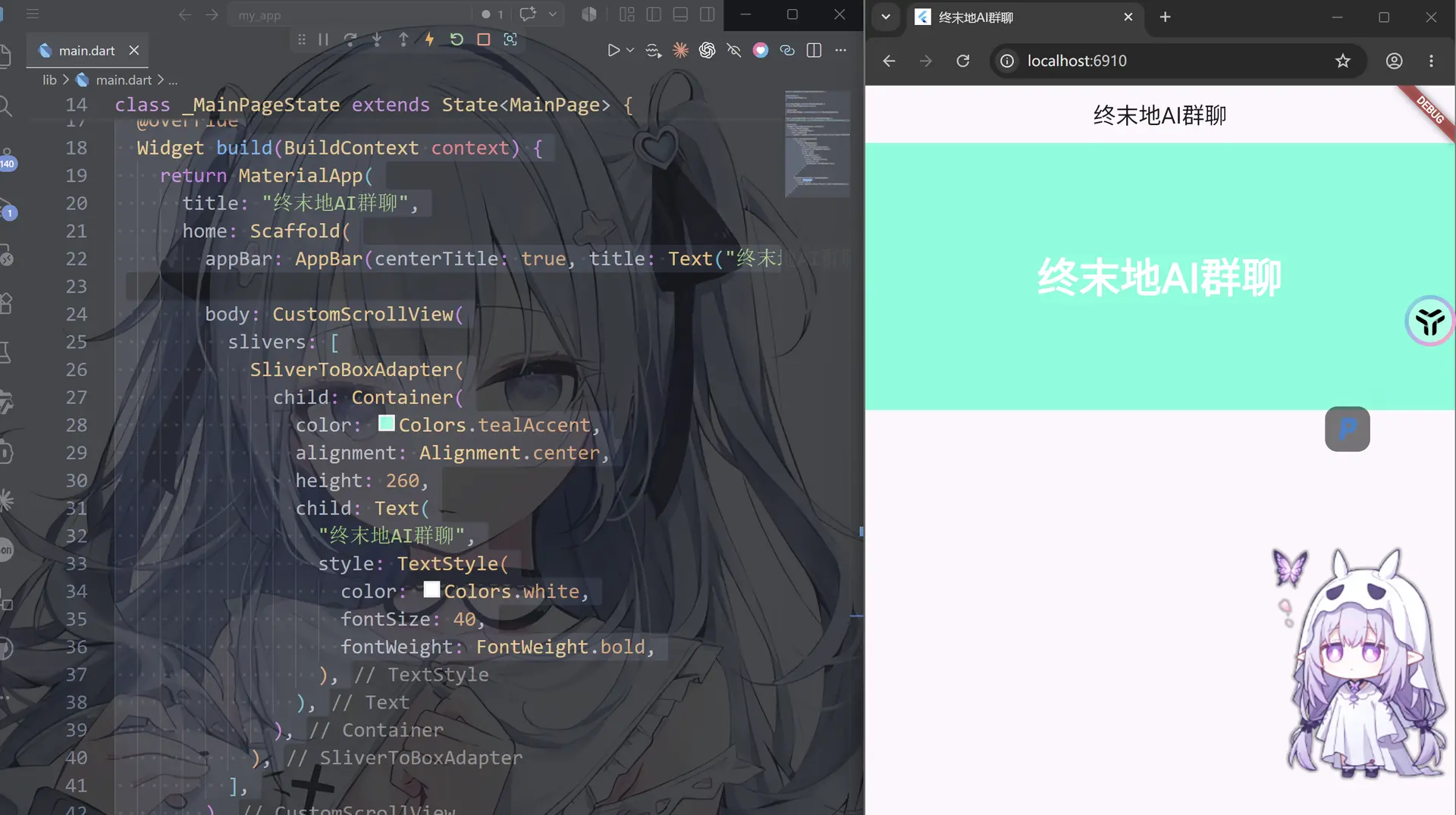
SliverToBoxAdapter轮播图的容器
作用:将普通 Widget(如 PageView 轮播图)转换为 Sliver,使其能融入 CustomScrollView 的滚动体系。
关键点:
- 只能包裹单个非重复内容
- 适合 Banner、间距、标题栏等”一次性”内容
import 'package:flutter/material.dart';
void main() {
runApp(MainPage());
}
class MainPage extends StatefulWidget {
const MainPage({super.key});
State<MainPage> createState() => _MainPageState();
}
class _MainPageState extends State<MainPage> {
//ScrollController _scrollController = ScrollController(); //滚动控制器
Widget build(BuildContext context) {
return MaterialApp(
title: "终末地AI群聊",
home: Scaffold(
appBar: AppBar(centerTitle: true, title: Text("终末地AI群聊")),
body: CustomScrollView(
slivers: [
SliverToBoxAdapter(
child: Container(
color: Colors.tealAccent,
alignment: Alignment.center,
height: 260,
child: Text(
"终末地AI群聊",
style: TextStyle(
color: Colors.white,
fontSize: 40,
fontWeight: FontWeight.bold,
),
),
),
),
],
),
bottomNavigationBar: BottomAppBar(
child: Container(
height: 50.0,
child: Center(child: Text("© 2026 终末地AI群聊")),
),
),
),
);
}
}
SliverpersistentHeader粘性吸顶分类
作用:让任意 Widget 在滚动到顶部时吸顶固定,比 SliverAppBar 更灵活。常用于分类筛选栏、频道 Tab。

import 'package:flutter/material.dart';
void main() {
runApp(MainPage());
}
class MainPage extends StatefulWidget {
const MainPage({super.key});
State<MainPage> createState() => _MainPageState();
}
class _MainPageState extends State<MainPage> {
//ScrollController _scrollController = ScrollController(); //滚动控制器
Widget build(BuildContext context) {
return MaterialApp(
title: "终末地AI群聊",
home: Scaffold(
appBar: AppBar(centerTitle: true, title: Text("终末地AI群聊")),
body: CustomScrollView(
slivers: [
//顶部轮播图
SliverToBoxAdapter(
child: Container(
color: Colors.tealAccent,
alignment: Alignment.center,
height: 260,
child: Text(
"终末地AI群聊",
style: TextStyle(
color: Colors.white,
fontSize: 40,
fontWeight: FontWeight.bold,
),
),
),
),
//粘性吸顶
SliverPersistentHeader(delegate: _StickyCategory()),//自定义委托
],
),
bottomNavigationBar: BottomAppBar(
child: Container(
height: 50.0,
child: Center(child: Text("© 2026 终末地AI群聊")),
),
),
),
);
}
}
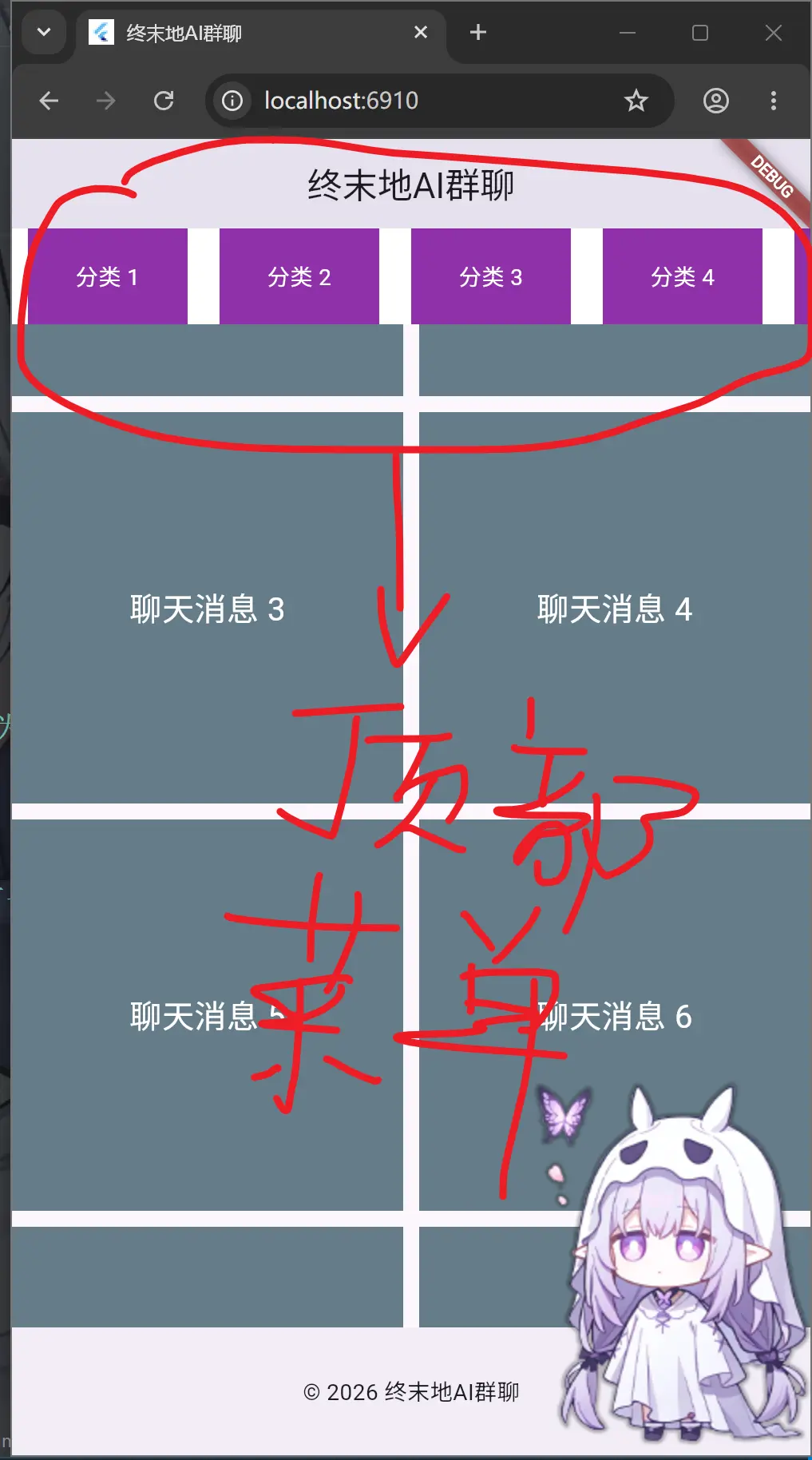
注意,对于pinned参数:
pinned: true 表示 到顶部后固定
pinned: false 表示 向下滚动时会直接滑走
SliverPersistentHeader(
              pinned:
                  true, //是否固定在顶部,如果设置为true则header会一直固定在顶部,直到下一个header出现时才会被替换掉,如果设置为false则header会随着滚动一起滚动,不会固定在顶部
              delegate: _StickyCategory(), //实现吸顶效果的delegate
            ),
必须自定义 SliverPersistentHeaderDelegate,核心参数:
minExtent:吸顶后的最小高度maxExtent:展开时的最大高度shrinkOffset:当前收缩偏移量(可用于做透明度/缩放动画)
class _StickyCategory extends SliverPersistentHeaderDelegate {
Widget build(
BuildContext context,
double shrinkOffset,
bool overlapsContent,
) {
// TODO: implement build
//返回构建的widget对象
throw UnimplementedError();
}
// TODO: implement maxExtent
//最大展开高度
double get maxExtent => throw UnimplementedError();
// TODO: implement minExtent
//最小折叠高度
double get minExtent => throw UnimplementedError();
bool shouldRebuild(covariant SliverPersistentHeaderDelegate oldDelegate) {
// TODO: implement shouldRebuild
throw UnimplementedError();
}
}
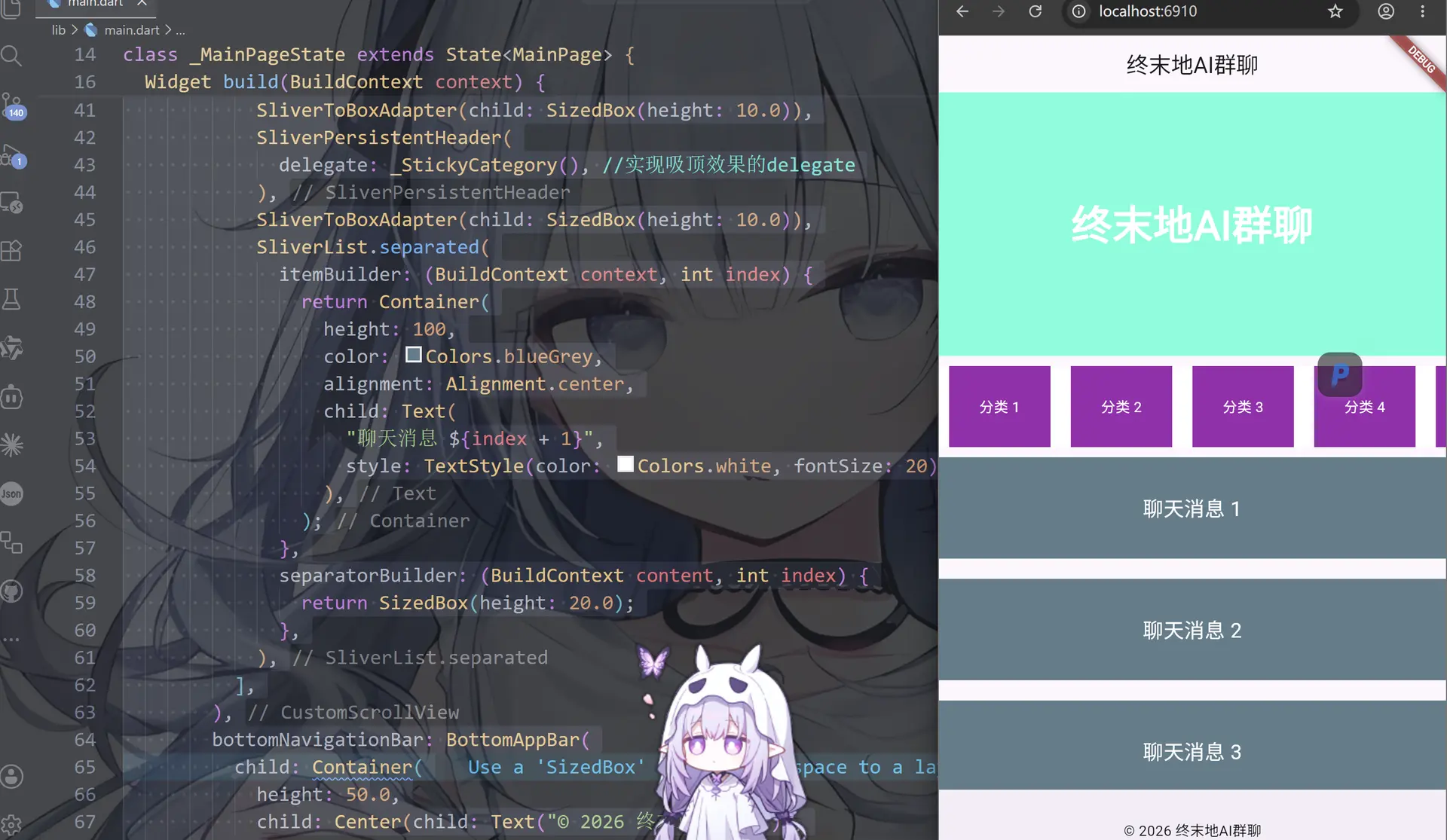
SliverList列表
import 'package:flutter/material.dart';
void main() {
runApp(MainPage());
}
class MainPage extends StatefulWidget {
const MainPage({super.key});
State<MainPage> createState() => _MainPageState();
}
class _MainPageState extends State<MainPage> {
Widget build(BuildContext context) {
return MaterialApp(
title: "终末地AI群聊",
home: Scaffold(
appBar: AppBar(centerTitle: true, title: Text("终末地AI群聊")),
body: CustomScrollView(
slivers: [
SliverToBoxAdapter(
//顶部内容
child: Container(
color: Colors.tealAccent,
alignment: Alignment.center,
height: 260,
child: Text(
"终末地AI群聊",
style: TextStyle(
color: Colors.white,
fontSize: 40,
fontWeight: FontWeight.bold,
),
),
),
),
//之间的空白区域也需要用Sliver来实现,这里我们用一个SizedBox来占位,设置高度为10.
SliverToBoxAdapter(child: SizedBox(height: 10.0)),
SliverPersistentHeader(
delegate: _StickyCategory(), //实现吸顶效果的delegate
),
SliverToBoxAdapter(child: SizedBox(height: 10.0)),
SliverList.separated(
itemBuilder: (BuildContext context, int index) {
return Container(
height: 100,
color: Colors.blueGrey,
alignment: Alignment.center,
child: Text(
"聊天消息 ${index + 1}",
style: TextStyle(color: Colors.white, fontSize: 20),
),
);
},
separatorBuilder: (BuildContext content, int index) {
return SizedBox(height: 20.0);
},
),
],
),
bottomNavigationBar: BottomAppBar(
child: Container(
height: 50.0,
child: Center(child: Text("© 2026 终末地AI群聊")),
),
),
),
);
}
}
//这里必须要继承SliverPersistentHeaderDelegate来实现吸顶效果,
//并且需要重写build方法来构建header的内容,重写maxExtent和minExtent来设置header的最大和最小高度,
//以及重写shouldRebuild来决定是否需要重新构建header,一般为false以提高性能,因为header内容通常不需要根据滚动状态改变
class _StickyCategory extends SliverPersistentHeaderDelegate {
Widget build(
BuildContext context,
double shrinkOffset,
bool overlapsContent,
) {
// TODO: implement build
return Container(
color: Colors.white, //分类背景颜色
child: ListView.builder(
itemCount: 30, //分类数量
scrollDirection: Axis.horizontal, //水平滚动
//itemBuilder的两个参数分别是上下文和索引,这里我们根据索引来构建每个分类的内容,比如显示分类名称等
//用(){}回调函数的方式来构建每个分类的内容,这里我们简单地用一个Container来显示分类名称,并设置背景颜色和文本样式等
itemBuilder: (BuildContext context, int index) {
return Container(
width: 100, //每个分类的宽度
margin: EdgeInsets.symmetric(horizontal: 10.0), //每个分类之间的间距
alignment: Alignment.center, //内容居中
color: Colors.purple, //分类块颜色
child: Text(
"分类 ${index + 1}",
style: TextStyle(color: Colors.white),
),
);
},
),
);
}
// TODO: implement maxExtent
//最大展开高度
double get maxExtent => 80;
// TODO: implement minExtent
//最小折叠高度
double get minExtent => 60;
bool shouldRebuild(covariant SliverPersistentHeaderDelegate oldDelegate) {
// TODO: implement shouldRebuild
//这里shouldRebuild代表是否需要重新构建,如果返回true则每次滚动都会调用build方法重新构建header,如果返回false则只会在第一次构建时调用build方法,之后滚动时不会调用build方法
//所以如果header内容不需要根据滚动状态改变则可以返回false以提高性能
return false;
}
}
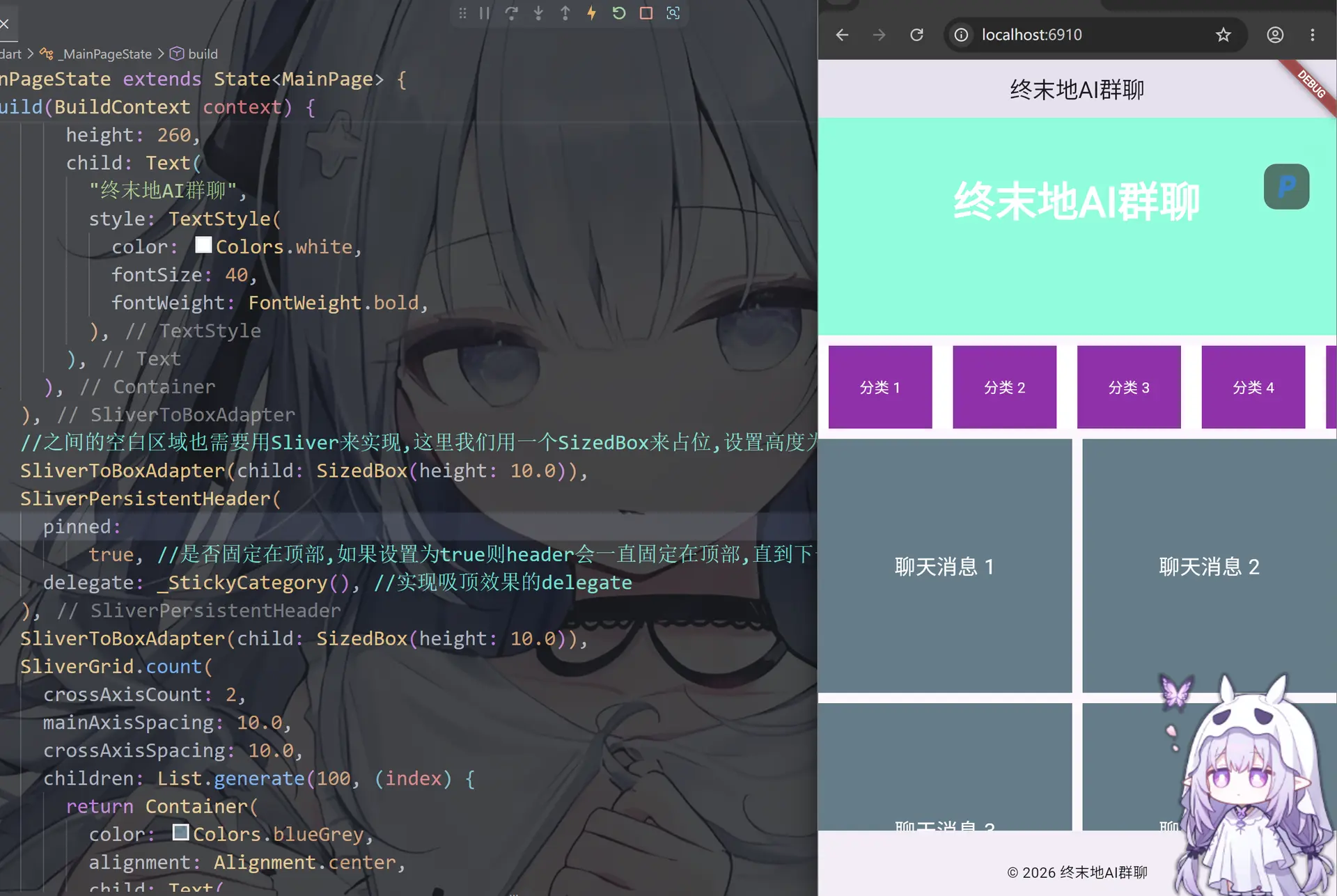
SliverGrid宫格
import 'package:flutter/material.dart';
void main() {
runApp(MainPage());
}
class MainPage extends StatefulWidget {
const MainPage({super.key});
State<MainPage> createState() => _MainPageState();
}
class _MainPageState extends State<MainPage> {
Widget build(BuildContext context) {
return MaterialApp(
title: "终末地AI群聊",
home: Scaffold(
appBar: AppBar(centerTitle: true, title: Text("终末地AI群聊")),
body: CustomScrollView(
slivers: [
SliverToBoxAdapter(
//顶部内容
child: Container(
color: Colors.tealAccent,
alignment: Alignment.center,
height: 260,
child: Text(
"终末地AI群聊",
style: TextStyle(
color: Colors.white,
fontSize: 40,
fontWeight: FontWeight.bold,
),
),
),
),
//之间的空白区域也需要用Sliver来实现,这里我们用一个SizedBox来占位,设置高度为10.
SliverToBoxAdapter(child: SizedBox(height: 10.0)),
SliverPersistentHeader(
delegate: _StickyCategory(), //实现吸顶效果的delegate
),
SliverToBoxAdapter(child: SizedBox(height: 10.0)),
SliverGrid.count(
crossAxisCount: 2,
mainAxisSpacing: 10.0,
crossAxisSpacing: 10.0,
children: List.generate(100, (index) {
return Container(
color: Colors.blueGrey,
alignment: Alignment.center,
child: Text(
"聊天消息 ${index + 1}",
style: TextStyle(color: Colors.white, fontSize: 20),
),
);
}),
),
],
),
bottomNavigationBar: BottomAppBar(
child: Container(
height: 50.0,
child: Center(child: Text("© 2026 终末地AI群聊")),
),
),
),
);
}
}
//这里必须要继承SliverPersistentHeaderDelegate来实现吸顶效果,
//并且需要重写build方法来构建header的内容,重写maxExtent和minExtent来设置header的最大和最小高度,
//以及重写shouldRebuild来决定是否需要重新构建header,一般为false以提高性能,因为header内容通常不需要根据滚动状态改变
class _StickyCategory extends SliverPersistentHeaderDelegate {
Widget build(
BuildContext context,
double shrinkOffset,
bool overlapsContent,
) {
// TODO: implement build
return Container(
color: Colors.white, //分类背景颜色
child: ListView.builder(
itemCount: 30, //分类数量
scrollDirection: Axis.horizontal, //水平滚动
//itemBuilder的两个参数分别是上下文和索引,这里我们根据索引来构建每个分类的内容,比如显示分类名称等
//用(){}回调函数的方式来构建每个分类的内容,这里我们简单地用一个Container来显示分类名称,并设置背景颜色和文本样式等
itemBuilder: (BuildContext context, int index) {
return Container(
width: 100, //每个分类的宽度
margin: EdgeInsets.symmetric(horizontal: 10.0), //每个分类之间的间距
alignment: Alignment.center, //内容居中
color: Colors.purple, //分类块颜色
child: Text(
"分类 ${index + 1}",
style: TextStyle(color: Colors.white),
),
);
},
),
);
}
// TODO: implement maxExtent
//最大展开高度
double get maxExtent => 80;
// TODO: implement minExtent
//最小折叠高度
double get minExtent => 60;
bool shouldRebuild(covariant SliverPersistentHeaderDelegate oldDelegate) {
// TODO: implement shouldRebuild
//这里shouldRebuild代表是否需要重新构建,如果返回true则每次滚动都会调用build方法重新构建header,如果返回false则只会在第一次构建时调用build方法,之后滚动时不会调用build方法
//所以如果header内容不需要根据滚动状态改变则可以返回false以提高性能
return false;
}
}
PageView
PageView 是 Flutter 中实现横向/纵向翻页滑动的核心组件,常用于轮播图、引导页、Tab 内容切换等场景
作用: 用于实现分页滚动视图的核心组件
方式: 提供多种构建方式,默认构造范式,Pageview.builder等
| 构造函数 | 适用场景 |
|---|---|
PageView() |
页面数量固定且少 |
PageView.builder() |
页面数量多或动态数据(懒加载) |
PageView.custom() |
需要完全自定义子项控制 |
import 'package:flutter/material.dart';
void main() {
runApp(MainPage());
}
class MainPage extends StatefulWidget {
const MainPage({super.key});
State<MainPage> createState() => _MainPageState();
}
class _MainPageState extends State<MainPage> {
Widget build(BuildContext context) {
return MaterialApp(
title: "终末地AI群聊",
home: Scaffold(
appBar: AppBar(centerTitle: true, title: Text("终末地AI群聊")),
body: CustomScrollView(
slivers: [
SliverToBoxAdapter(
//顶部内容
child: Container(
color: Colors.tealAccent,
alignment: Alignment.center,
height: 260,
child: PageView.builder(
//PageView轮播图
itemCount: 10,
itemBuilder: (BuildContext context, int index) {
return Container(
alignment: Alignment.center,
child: Text(
"轮播图 ${index + 1}",
style: TextStyle(
fontSize: 24,
fontWeight: FontWeight.bold,
color: Colors.white,
),
),
);
},
),
),
),
//之间的空白区域也需要用Sliver来实现,这里我们用一个SizedBox来占位,设置高度为10.
SliverToBoxAdapter(child: SizedBox(height: 10.0)),
SliverPersistentHeader(
pinned:
true, //是否固定在顶部,如果设置为true则header会一直固定在顶部,直到下一个header出现时才会被替换掉,如果设置为false则header会随着滚动一起滚动,不会固定在顶部
delegate: _StickyCategory(), //实现吸顶效果的delegate
),
SliverToBoxAdapter(child: SizedBox(height: 10.0)),
SliverGrid.count(
crossAxisCount: 2,
mainAxisSpacing: 10.0,
crossAxisSpacing: 10.0,
children: List.generate(100, (index) {
return Container(
color: Colors.blueGrey,
alignment: Alignment.center,
child: Text(
"聊天消息 ${index + 1}",
style: TextStyle(color: Colors.white, fontSize: 20),
),
);
}),
),
],
),
bottomNavigationBar: BottomAppBar(
child: Container(
height: 50.0,
child: Center(child: Text("© 2026 终末地AI群聊")),
),
),
),
);
}
}
//这里必须要继承SliverPersistentHeaderDelegate来实现吸顶效果,
//并且需要重写build方法来构建header的内容,重写maxExtent和minExtent来设置header的最大和最小高度,
//以及重写shouldRebuild来决定是否需要重新构建header,一般为false以提高性能,因为header内容通常不需要根据滚动状态改变
class _StickyCategory extends SliverPersistentHeaderDelegate {
Widget build(
BuildContext context,
double shrinkOffset,
bool overlapsContent,
) {
// TODO: implement build
return Container(
color: Colors.white, //分类背景颜色
child: ListView.builder(
itemCount: 30, //分类数量
scrollDirection: Axis.horizontal, //水平滚动
//itemBuilder的两个参数分别是上下文和索引,这里我们根据索引来构建每个分类的内容,比如显示分类名称等
//用(){}回调函数的方式来构建每个分类的内容,这里我们简单地用一个Container来显示分类名称,并设置背景颜色和文本样式等
itemBuilder: (BuildContext context, int index) {
return Container(
width: 100, //每个分类的宽度
margin: EdgeInsets.symmetric(horizontal: 10.0), //每个分类之间的间距
alignment: Alignment.center, //内容居中
color: Colors.purple, //分类块颜色
child: Text(
"分类 ${index + 1}",
style: TextStyle(color: Colors.white),
),
);
},
),
);
}
// TODO: implement maxExtent
//最大展开高度
double get maxExtent => 80;
// TODO: implement minExtent
//最小折叠高度
double get minExtent => 60;
bool shouldRebuild(covariant SliverPersistentHeaderDelegate oldDelegate) {
// TODO: implement shouldRebuild
//这里shouldRebuild代表是否需要重新构建,如果返回true则每次滚动都会调用build方法重新构建header,如果返回false则只会在第一次构建时调用build方法,之后滚动时不会调用build方法
//所以如果header内容不需要根据滚动状态改变则可以返回false以提高性能
return false;
}
}
PageView跳转控制

import 'package:flutter/material.dart';
void main() {
runApp(MainPage());
}
class MainPage extends StatefulWidget {
const MainPage({super.key});
State<MainPage> createState() => _MainPageState();
}
class _MainPageState extends State<MainPage> {
int _currentIndex = 0;
PageController _controller = PageController();
Widget build(BuildContext context) {
return MaterialApp(
title: "终末地AI群聊",
home: Scaffold(
appBar: AppBar(centerTitle: true, title: Text("终末地AI群聊")),
body: CustomScrollView(
slivers: [
SliverToBoxAdapter(
//顶部内容
child: Stack(
children: [
Container(
color: Colors.tealAccent,
alignment: Alignment.center,
height: 260,
child: PageView.builder(
controller: _controller,
//当页面切换时,会调用onPageChanged方法,这里我们用setState来更新当前索引
//以便小圆点能够正确显示当前页面的索引,同时也可以在其他地方根据当前索引来显示对应的内容等
onPageChanged: (index) {
setState(() {
_currentIndex = index;
});
},
//PageView轮播图
itemCount: 10,
itemBuilder: (BuildContext context, int index) {
return Container(
alignment: Alignment.center,
child: Text(
"轮播图 ${index + 1}",
style: TextStyle(
fontSize: 24,
fontWeight: FontWeight.bold,
color: Colors.white,
),
),
);
},
),
),
Positioned(
bottom: 0,
left: 0,
right: 0,
height: 30,
child: Container(
child: Row(
mainAxisAlignment: MainAxisAlignment.center,
children: List.generate(10, (index) {
return GestureDetector(
onTap: () {
_controller.animateToPage(
index,
duration: Duration(microseconds: 300),
curve: Curves.linear,
);
//点击小圆点切换轮播图,这里我们用setState来更新当前索引并调用jumpToPage方法来切换到对应的页面
//但是这种切换方式很生硬,我们用animateToPage方法来切换轮播图,而setState只需要更新当前索引即可
//因为animateToPage方法会在切换完成后自动调用setState来更新当前索引,所以我们不需要在onTap中调用setState来更新当前索引,只需要调用animateToPage方法来切换轮播图即可,这样切换效果会更平滑
// setState(() {
// _currentIndex = index;
// _controller.jumpToPage(index);
// });
},
child: Container(
margin: EdgeInsets.only(left: 10),
width: 10,
height: 10,
decoration: BoxDecoration(
color: _currentIndex == index
? Colors.red
: Colors.white,
borderRadius: BorderRadius.circular(5),
),
),
);
}),
),
),
),
],
),
),
//之间的空白区域也需要用Sliver来实现,这里我们用一个SizedBox来占位,设置高度为10.
SliverToBoxAdapter(child: SizedBox(height: 10.0)),
SliverPersistentHeader(
pinned:
true, //是否固定在顶部,如果设置为true则header会一直固定在顶部,直到下一个header出现时才会被替换掉,如果设置为false则header会随着滚动一起滚动,不会固定在顶部
delegate: _StickyCategory(), //实现吸顶效果的delegate
),
SliverToBoxAdapter(child: SizedBox(height: 10.0)),
SliverGrid.count(
crossAxisCount: 2,
mainAxisSpacing: 10.0,
crossAxisSpacing: 10.0,
children: List.generate(100, (index) {
return Container(
color: Colors.blueGrey,
alignment: Alignment.center,
child: Text(
"聊天消息 ${index + 1}",
style: TextStyle(color: Colors.white, fontSize: 20),
),
);
}),
),
],
),
bottomNavigationBar: BottomAppBar(
child: Container(
height: 50.0,
child: Center(child: Text("© 2026 终末地AI群聊")),
),
),
),
);
}
}
//这里必须要继承SliverPersistentHeaderDelegate来实现吸顶效果,
//并且需要重写build方法来构建header的内容,重写maxExtent和minExtent来设置header的最大和最小高度,
//以及重写shouldRebuild来决定是否需要重新构建header,一般为false以提高性能,因为header内容通常不需要根据滚动状态改变
class _StickyCategory extends SliverPersistentHeaderDelegate {
Widget build(
BuildContext context,
double shrinkOffset,
bool overlapsContent,
) {
// TODO: implement build
return Container(
color: Colors.white, //分类背景颜色
child: ListView.builder(
itemCount: 30, //分类数量
scrollDirection: Axis.horizontal, //水平滚动
//itemBuilder的两个参数分别是上下文和索引,这里我们根据索引来构建每个分类的内容,比如显示分类名称等
//用(){}回调函数的方式来构建每个分类的内容,这里我们简单地用一个Container来显示分类名称,并设置背景颜色和文本样式等
itemBuilder: (BuildContext context, int index) {
return Container(
width: 100, //每个分类的宽度
margin: EdgeInsets.symmetric(horizontal: 10.0), //每个分类之间的间距
alignment: Alignment.center, //内容居中
color: Colors.purple, //分类块颜色
child: Text(
"分类 ${index + 1}",
style: TextStyle(color: Colors.white),
),
);
},
),
);
}
// TODO: implement maxExtent
//最大展开高度
double get maxExtent => 80;
// TODO: implement minExtent
//最小折叠高度
double get minExtent => 60;
bool shouldRebuild(covariant SliverPersistentHeaderDelegate oldDelegate) {
// TODO: implement shouldRebuild
//这里shouldRebuild代表是否需要重新构建,如果返回true则每次滚动都会调用build方法重新构建header,如果返回false则只会在第一次构建时调用build方法,之后滚动时不会调用build方法
//所以如果header内容不需要根据滚动状态改变则可以返回false以提高性能
return false;
}
}
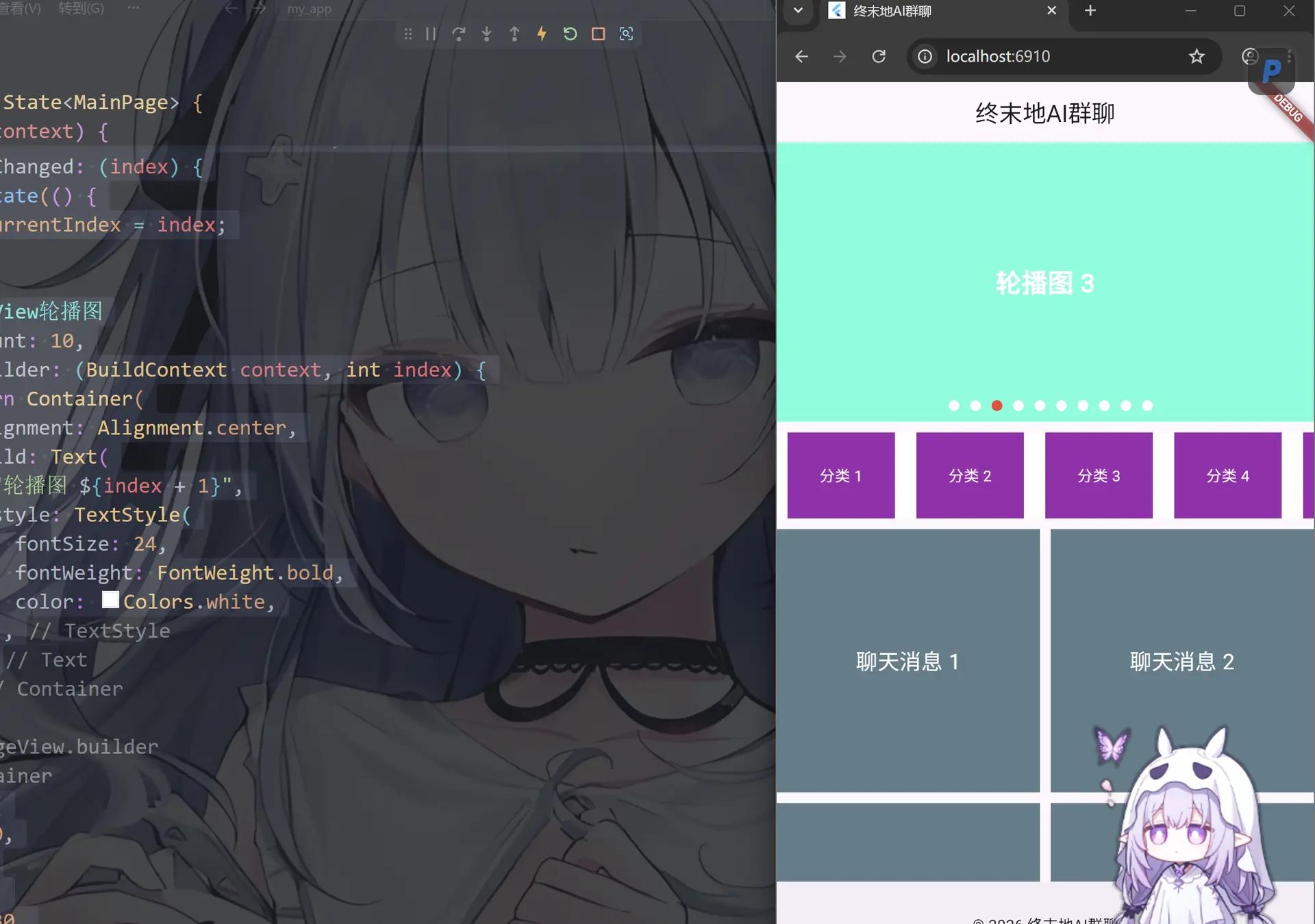
卡片层叠效果(viewportFraction)
import 'package:flutter/material.dart';
void main() {
runApp(MainPage());
}
class MainPage extends StatefulWidget {
const MainPage({super.key});
State<MainPage> createState() => _MainPageState();
}
class _MainPageState extends State<MainPage> {
late PageController _controller;
Widget build(BuildContext context) {
_controller = PageController(viewportFraction: 0.85);
return MaterialApp(
title: "终末地AI群聊",
home: Scaffold(
appBar: AppBar(centerTitle: true, title: Text("终末地AI群聊")),
body: CustomScrollView(
slivers: [
SliverToBoxAdapter(
//顶部内容
child: Container(
color: Colors.tealAccent,
alignment: Alignment.center,
height: 260,
//卡片堆叠效果
child: PageView.builder(
controller: _controller,
itemBuilder: (context, index) {
return AnimatedBuilder(
animation: _controller,
builder: (context, child) {
double value = 1.0;
if (_controller.position.haveDimensions) {
value = (_controller.page! - index).abs();
value = (1 - (value * 0.3)).clamp(0.85, 1.0); // 缩放系数
}
return Transform.scale(scale: value, child: child);
},
child: Container(
margin: const EdgeInsets.symmetric(horizontal: 8),
decoration: BoxDecoration(
borderRadius: BorderRadius.circular(16),
color:
Colors.primaries[index % Colors.primaries.length],
),
),
);
},
),
),
),
//之间的空白区域也需要用Sliver来实现,这里我们用一个SizedBox来占位,设置高度为10.
SliverToBoxAdapter(child: SizedBox(height: 10.0)),
SliverPersistentHeader(
pinned:
true, //是否固定在顶部,如果设置为true则header会一直固定在顶部,直到下一个header出现时才会被替换掉,如果设置为false则header会随着滚动一起滚动,不会固定在顶部
delegate: _StickyCategory(), //实现吸顶效果的delegate
),
SliverToBoxAdapter(child: SizedBox(height: 10.0)),
SliverGrid.count(
crossAxisCount: 2,
mainAxisSpacing: 10.0,
crossAxisSpacing: 10.0,
children: List.generate(100, (index) {
return Container(
color: Colors.blueGrey,
alignment: Alignment.center,
child: Text(
"聊天消息 ${index + 1}",
style: TextStyle(color: Colors.white, fontSize: 20),
),
);
}),
),
],
),
bottomNavigationBar: BottomAppBar(
child: Container(
height: 50.0,
child: Center(child: Text("© 2026 终末地AI群聊")),
),
),
),
);
}
}
//这里必须要继承SliverPersistentHeaderDelegate来实现吸顶效果,
//并且需要重写build方法来构建header的内容,重写maxExtent和minExtent来设置header的最大和最小高度,
//以及重写shouldRebuild来决定是否需要重新构建header,一般为false以提高性能,因为header内容通常不需要根据滚动状态改变
class _StickyCategory extends SliverPersistentHeaderDelegate {
Widget build(
BuildContext context,
double shrinkOffset,
bool overlapsContent,
) {
// TODO: implement build
return Container(
color: Colors.white, //分类背景颜色
child: ListView.builder(
itemCount: 30, //分类数量
scrollDirection: Axis.horizontal, //水平滚动
//itemBuilder的两个参数分别是上下文和索引,这里我们根据索引来构建每个分类的内容,比如显示分类名称等
//用(){}回调函数的方式来构建每个分类的内容,这里我们简单地用一个Container来显示分类名称,并设置背景颜色和文本样式等
itemBuilder: (BuildContext context, int index) {
return Container(
width: 100, //每个分类的宽度
margin: EdgeInsets.symmetric(horizontal: 10.0), //每个分类之间的间距
alignment: Alignment.center, //内容居中
color: Colors.purple, //分类块颜色
child: Text(
"分类 ${index + 1}",
style: TextStyle(color: Colors.white),
),
);
},
),
);
}
// TODO: implement maxExtent
//最大展开高度
double get maxExtent => 80;
// TODO: implement minExtent
//最小折叠高度
double get minExtent => 60;
bool shouldRebuild(covariant SliverPersistentHeaderDelegate oldDelegate) {
// TODO: implement shouldRebuild
//这里shouldRebuild代表是否需要重新构建,如果返回true则每次滚动都会调用build方法重新构建header,如果返回false则只会在第一次构建时调用build方法,之后滚动时不会调用build方法
//所以如果header内容不需要根据滚动状态改变则可以返回false以提高性能
return false;
}
}

评论区